


There a 2 ways to order a transcript.
First, search for "Schreiner Transcript" and click on the search result that says "Transcript Request" or click on this link, recommend right click and then "open link in new tab." https://schreiner.edu/su-directory/transcript-request/
You will be in a new page and you will see two different options.
The first option is to call the Registrar at (830)792-7356
The second option is to click on "Transcript Request form." This request form will let you get your transcript online or through mail. 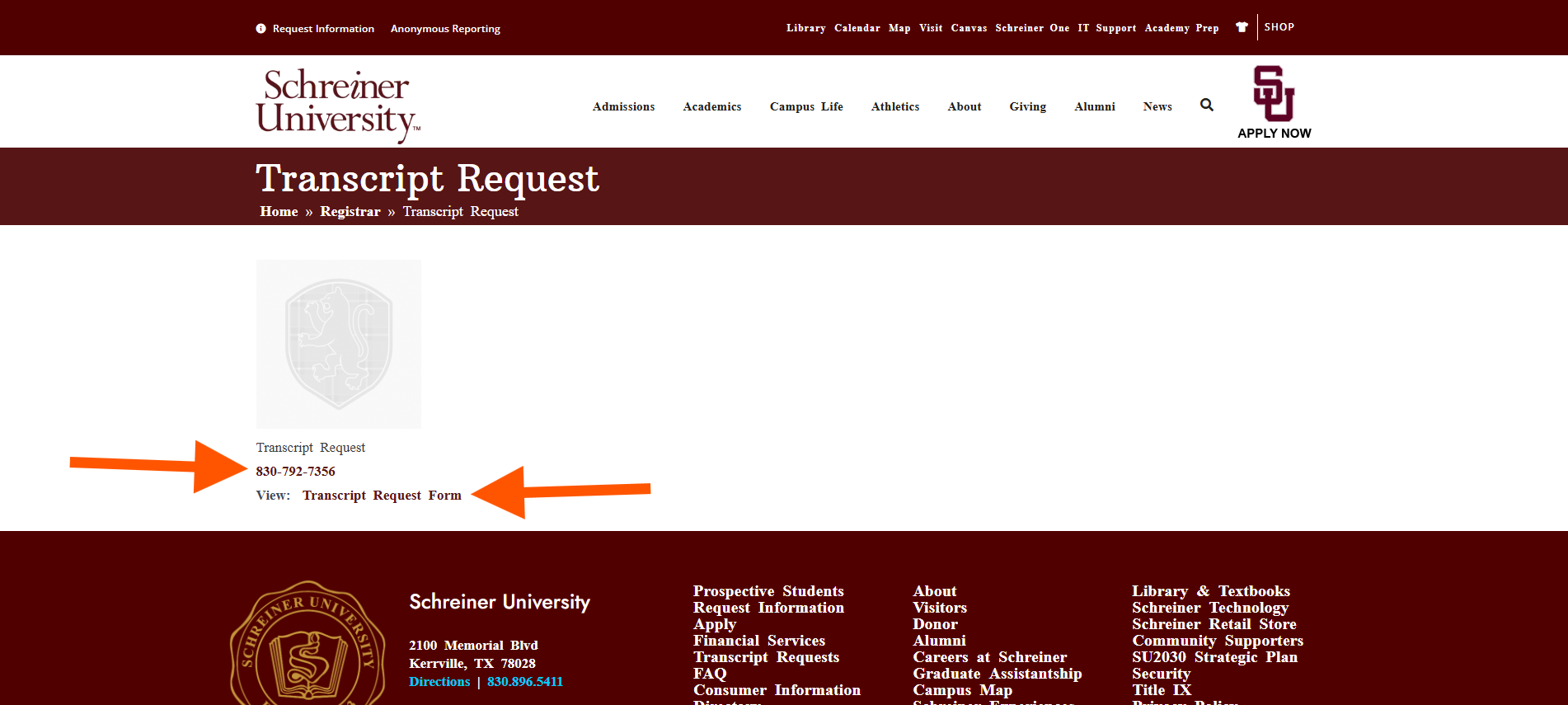
Once you clicked on "Transcript Request form."
You will be in a new page, click on "Order Records"
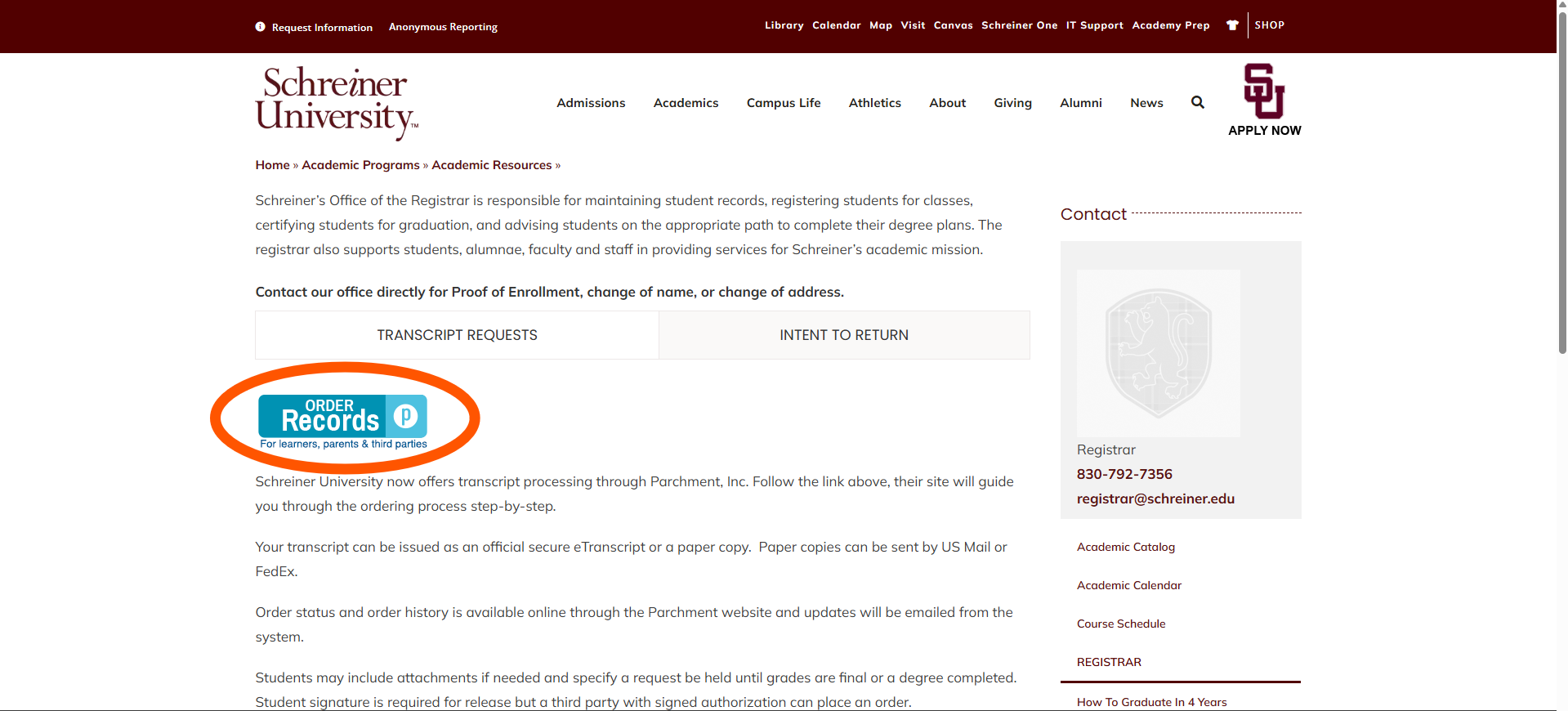
Once you have clicked on "Order Records." You will be taken to a new page.
Here you will to get your transcript.
*NOTE. The online fee to get your transcript is $10.00.
The physical copy that will be mailed via US mail is $12.50 (before taxes).
Enter in your email and then click on "Continue." 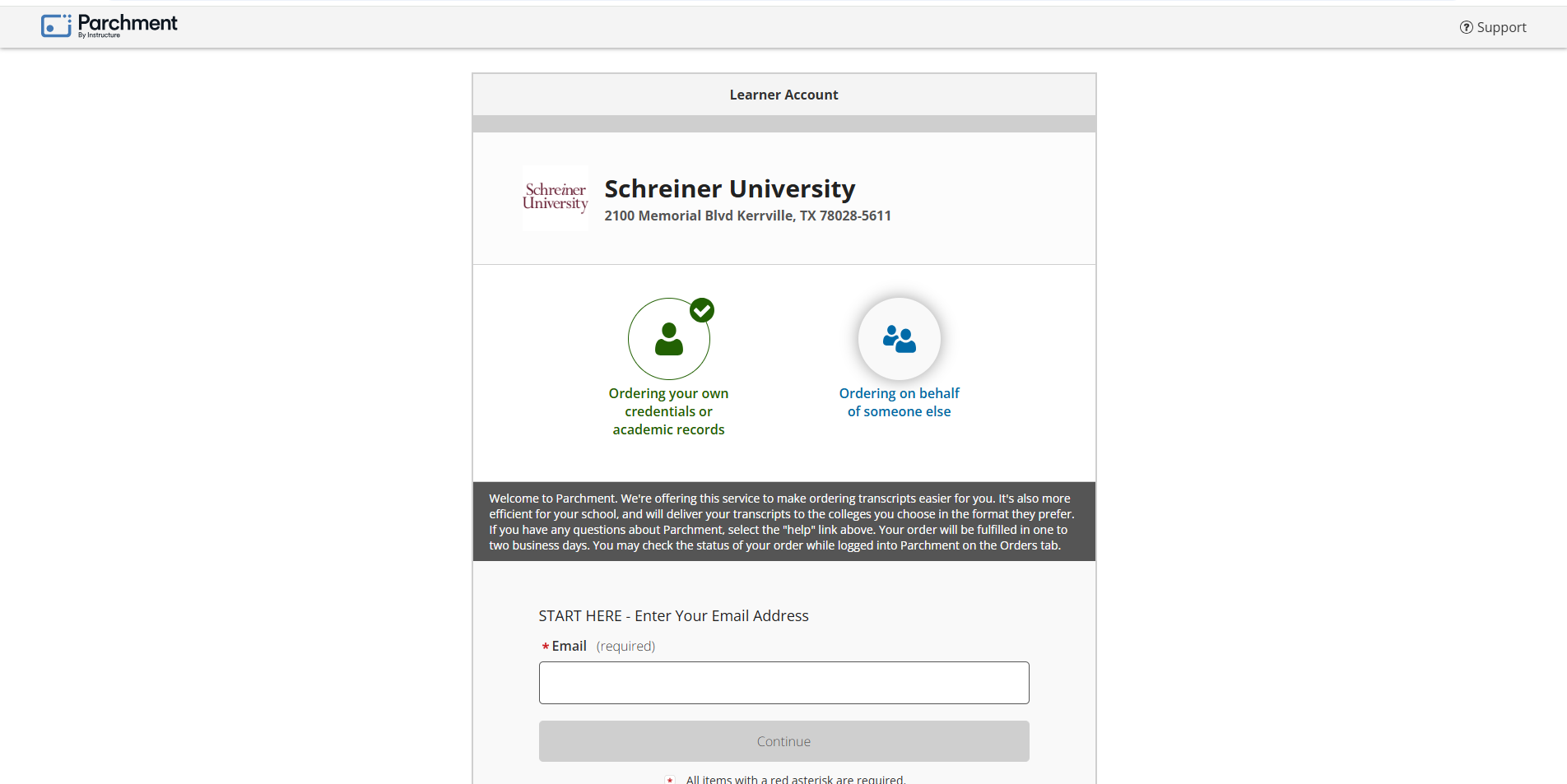
Scroll down a bit and you will see where you need to put in your information.
Once you have entered in all of the information, Click on Continue. 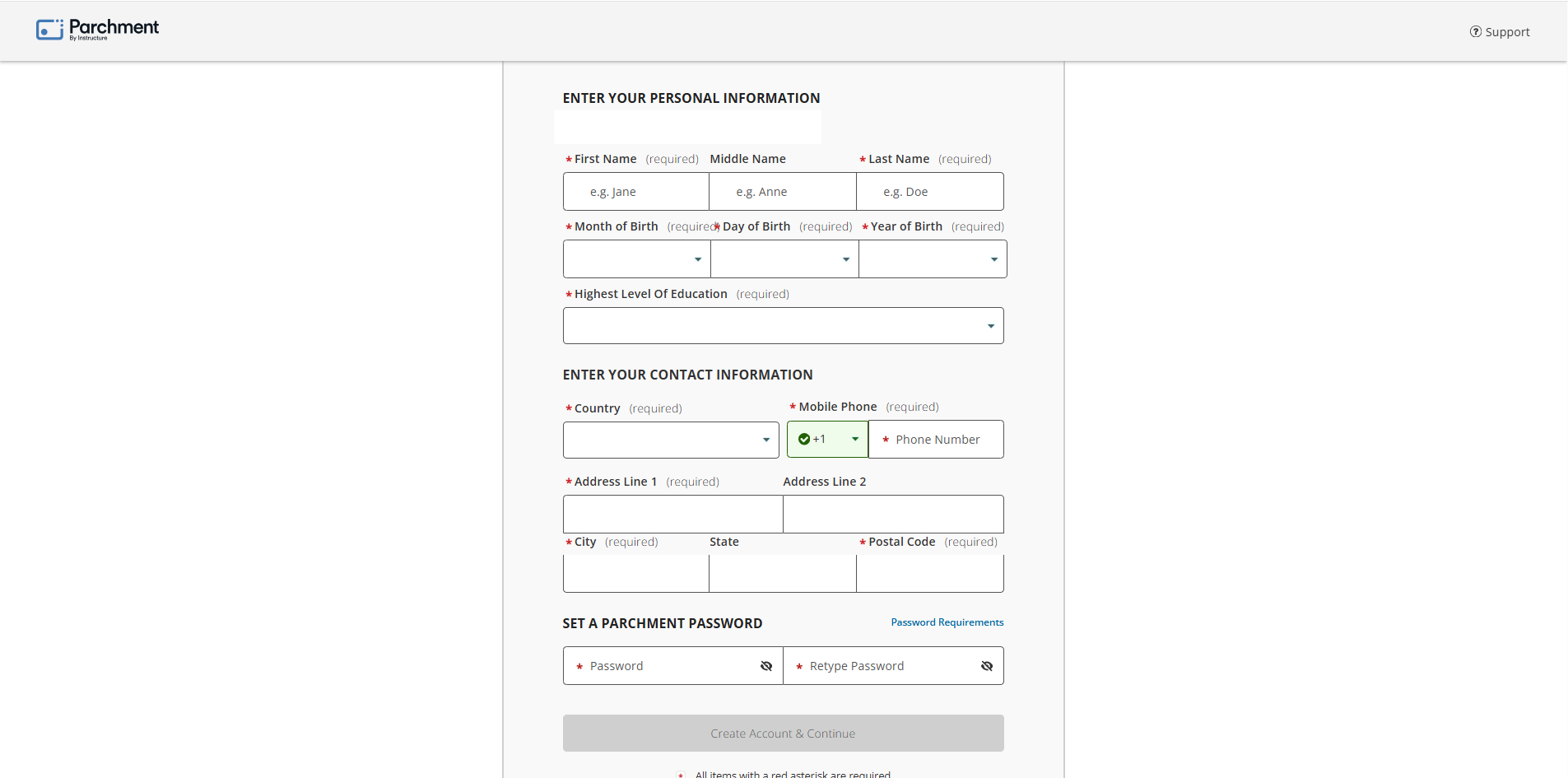
You will see a page where you will need to sign in.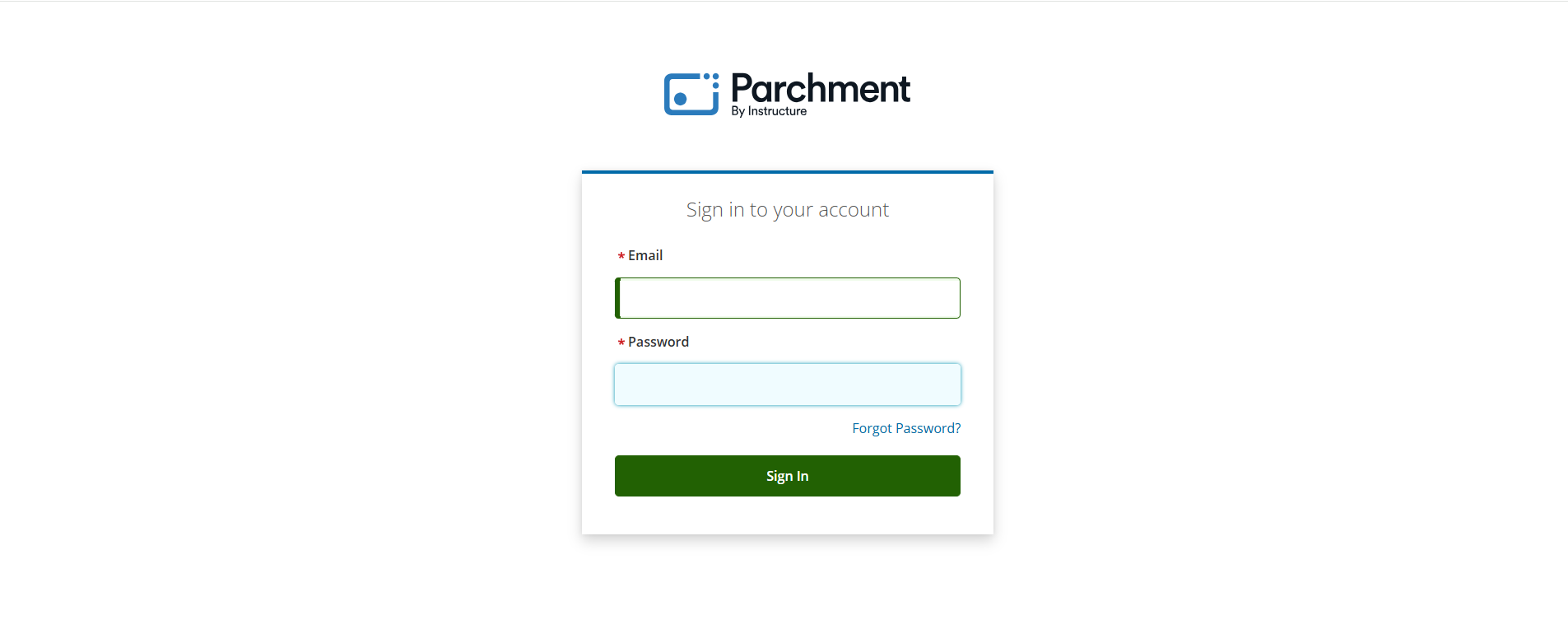
It will ask you to verify your email. Once you are verified, you will be redirected to this new page where you will need to add in more information. Scroll down a bit and click on "save."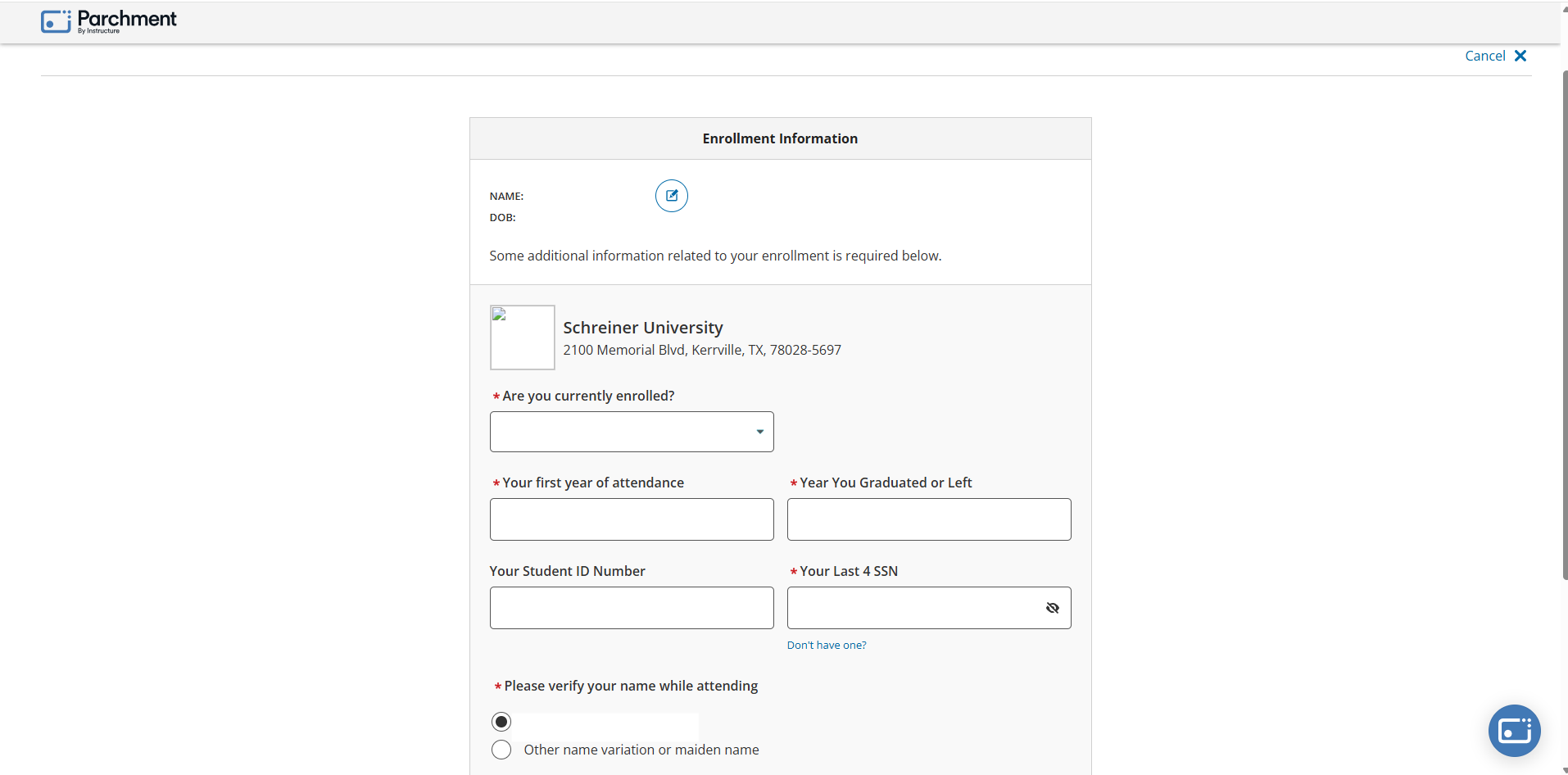
Next you will see a new page where you will be able to see your Available Credentials.
Click on "Order" to start your order for your Transcript. 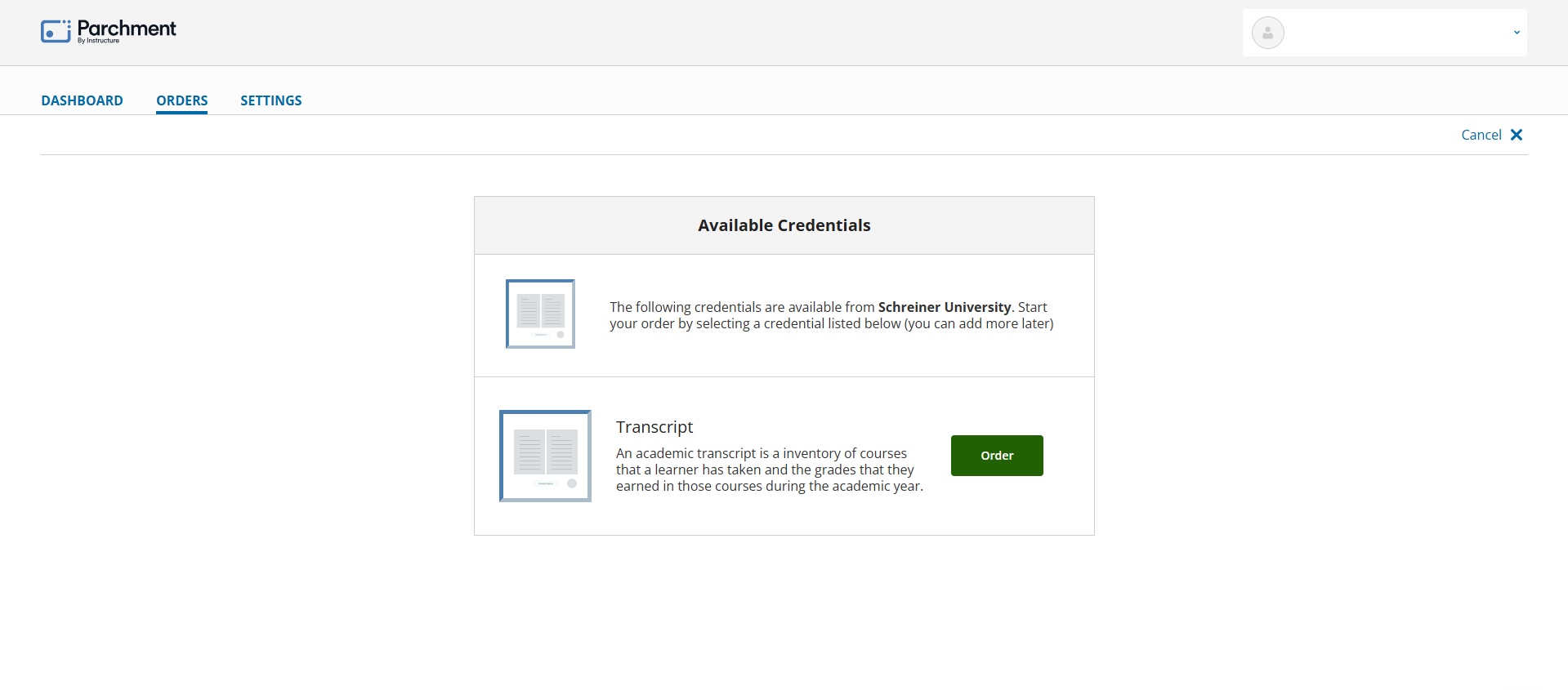 There are two options here.
First, you can send the transcript to an individual or to an organization.
Second, you can send the transcript to yourself or to an individual.
For this article, we are focusing on sending the Transcript to ourselves, click on "I'm sending to myself or another individual."
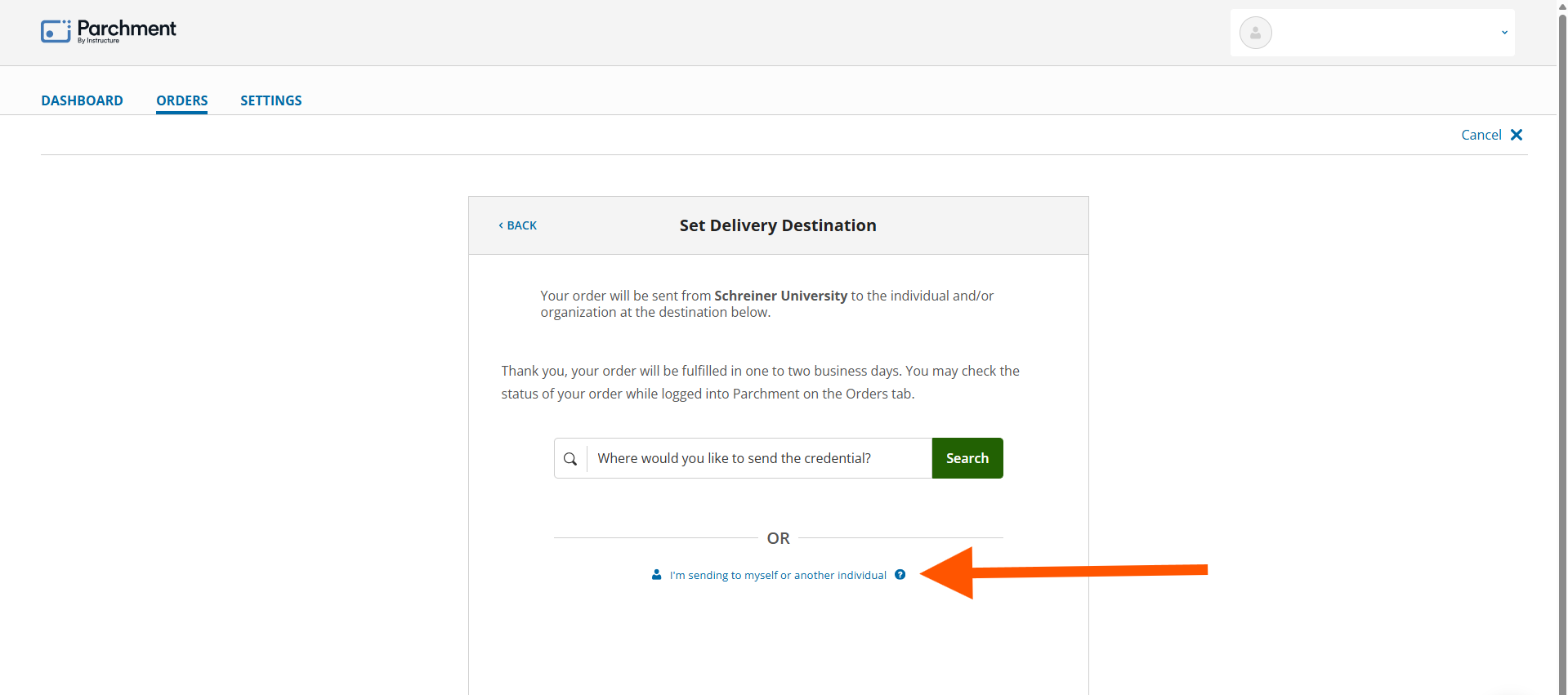
Once you have clicked on that, a little pop up will appear. Click on "I am sending this order to myself." 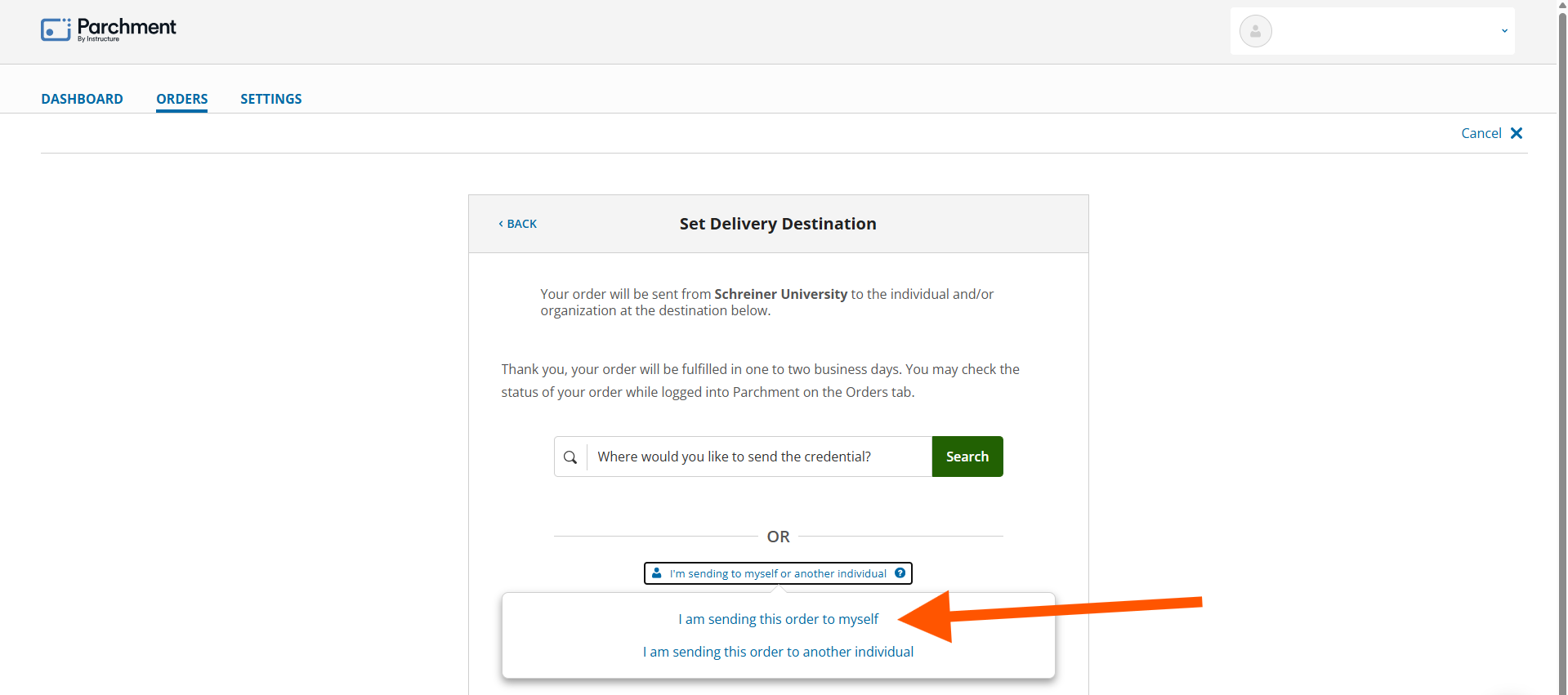
You will be giving two options to chose from, you can either get the transcript by email or get the transcript through the mail.
First we will go over email. Verify that all of the information being provided is correct. Then click on "Continue."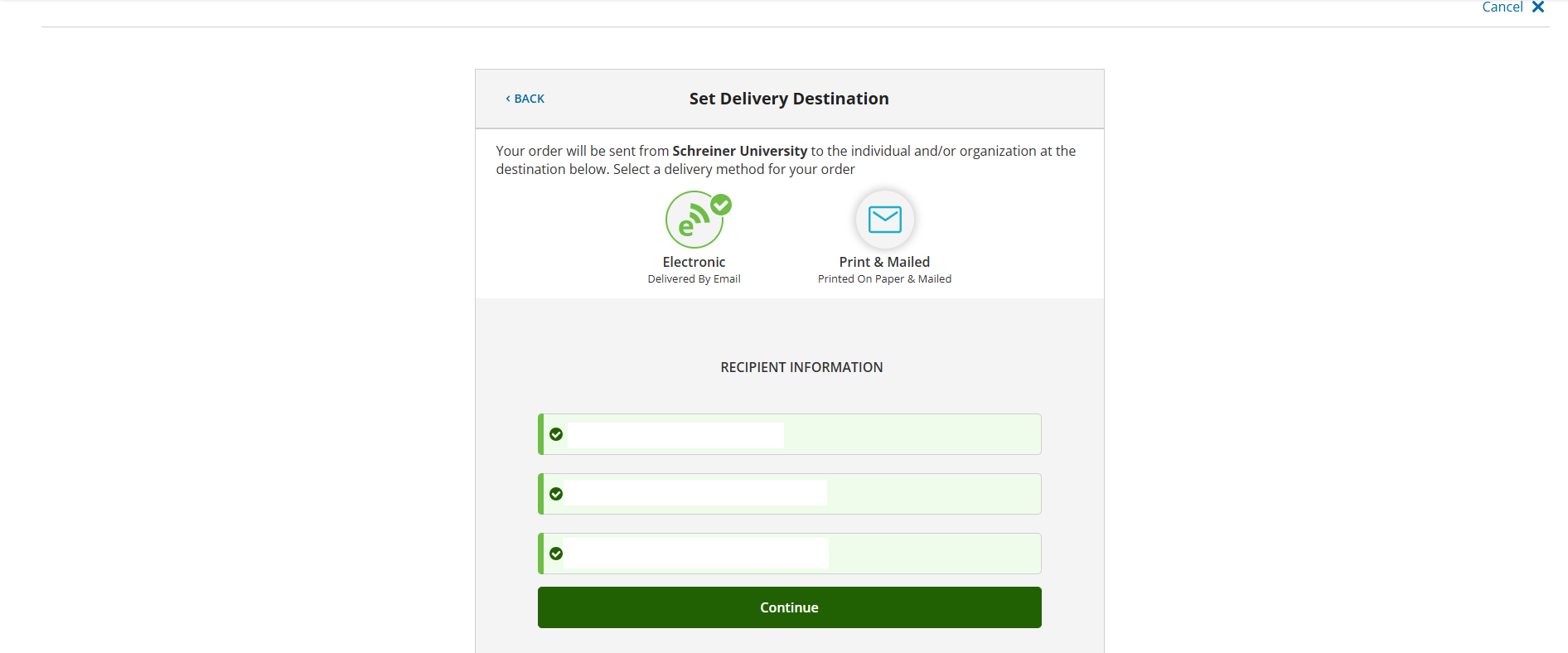
Verify that all of the information is correct. Who the transcript is for, where it's from, who it goes to and the fee.
You can set what when you want the transcript being sent.
If you need to add an attachment file you can do so by clicking on "Add Attachment."
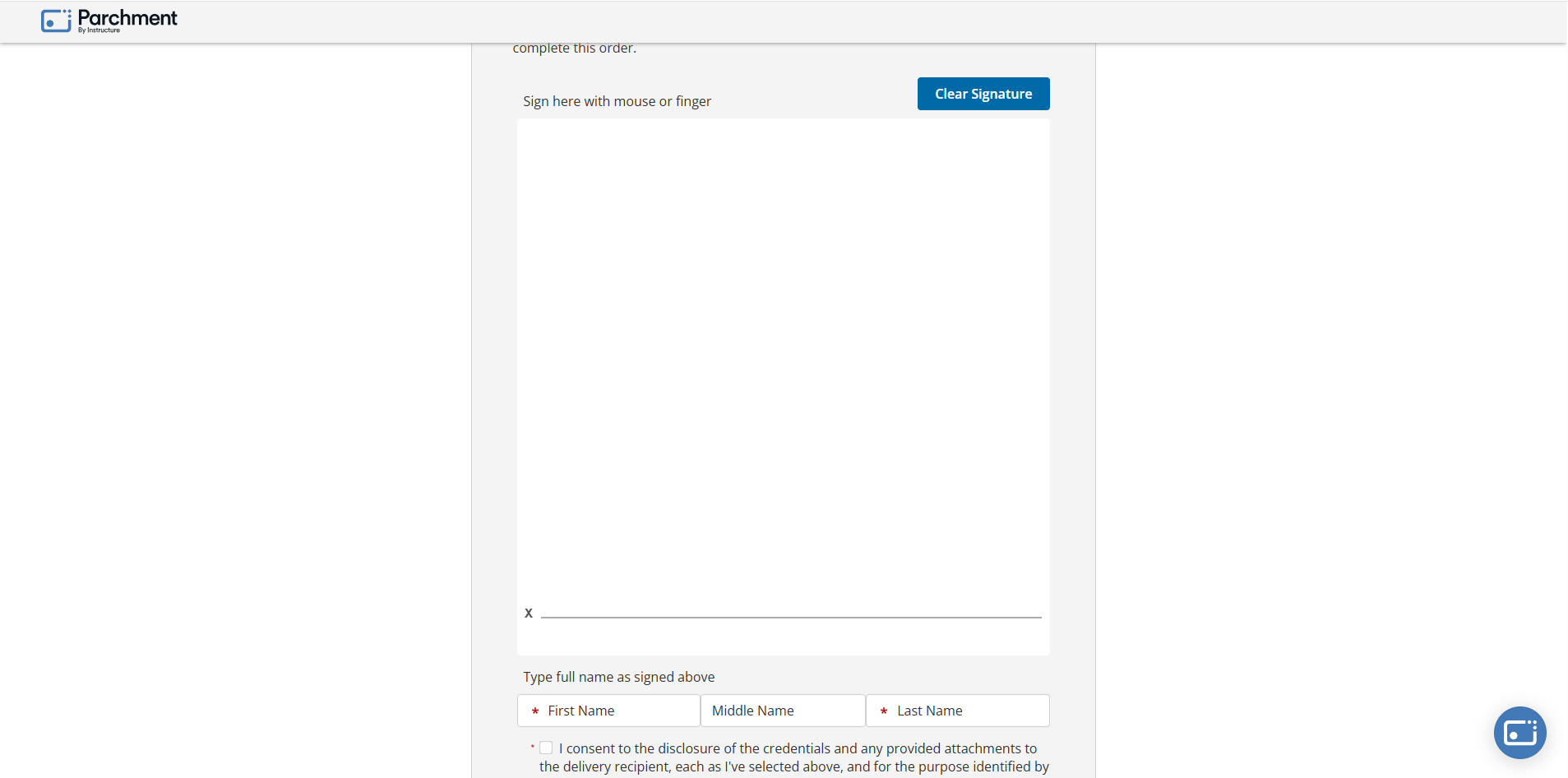
You want to scroll down a bit in order to do a signature.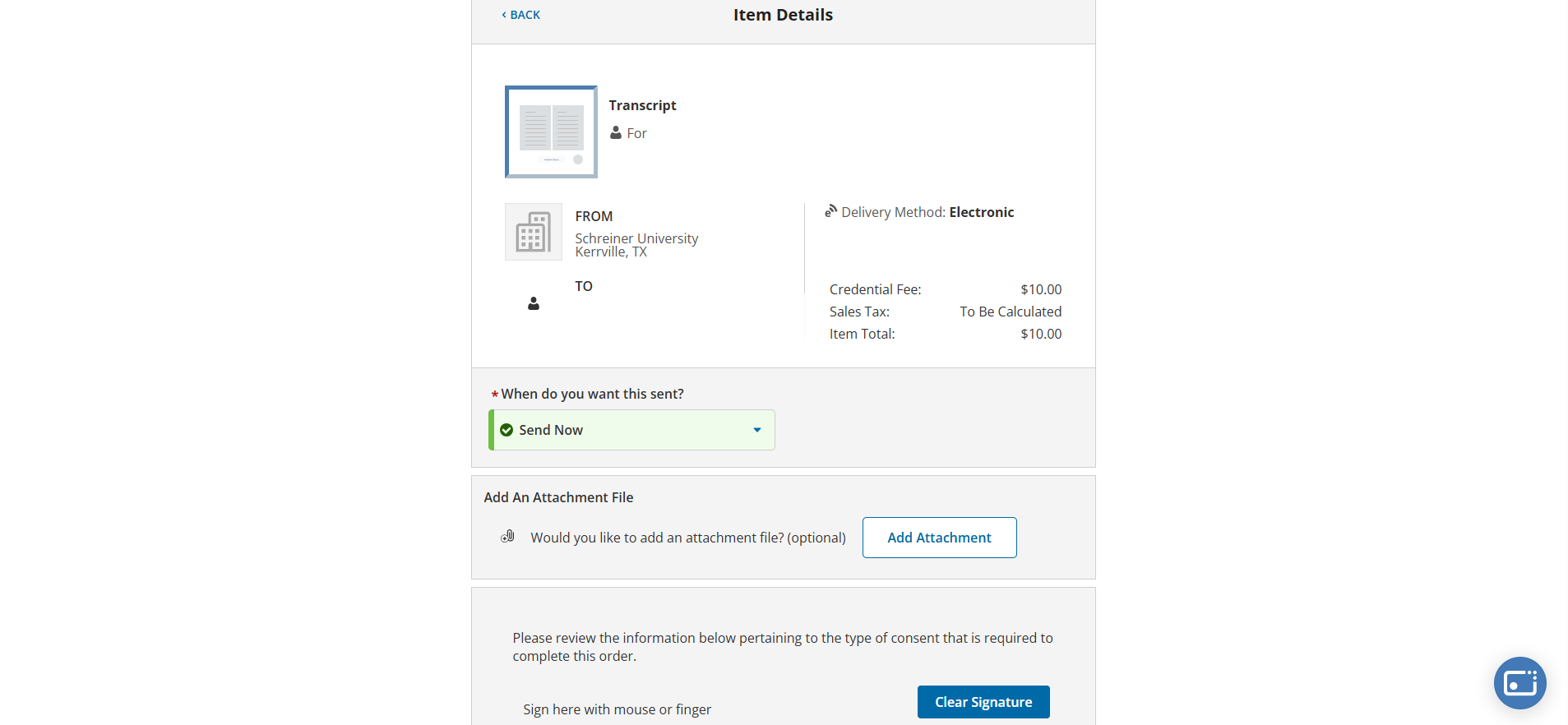 You can either sign with your mouse or finger.
Once that is done, you will want to type out the signature in the boxes provided.
Then click on the check box right below it.
Scroll down a bit and click on "Continue."
You will be sent to the order summary page.
Once everything looks good in the Order summary, click on "Continue."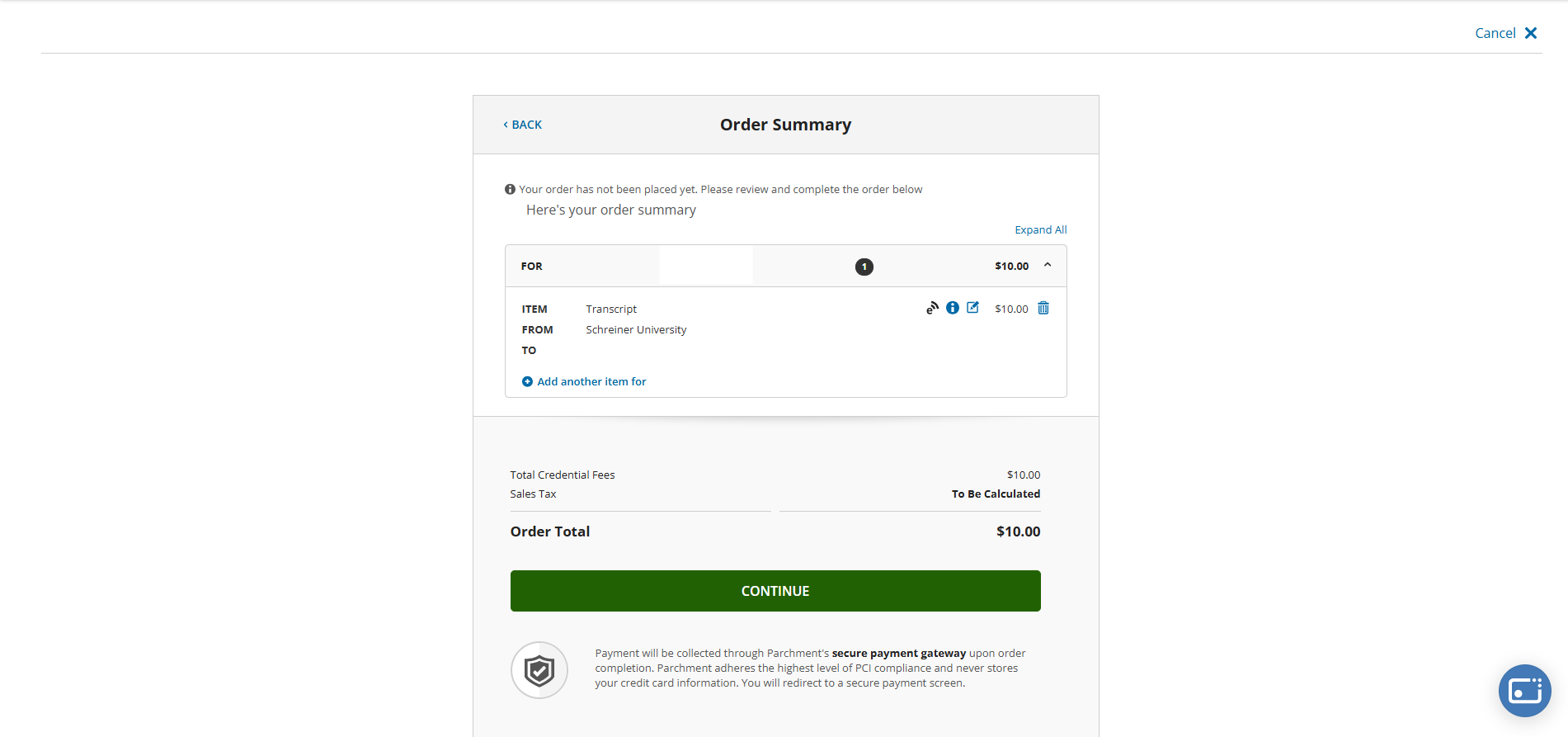
Here you will need to check if everything is correct. Provide your phone number, if the billing address is not correct please go back and correct it.
When everything looks correct, click on "Continue." 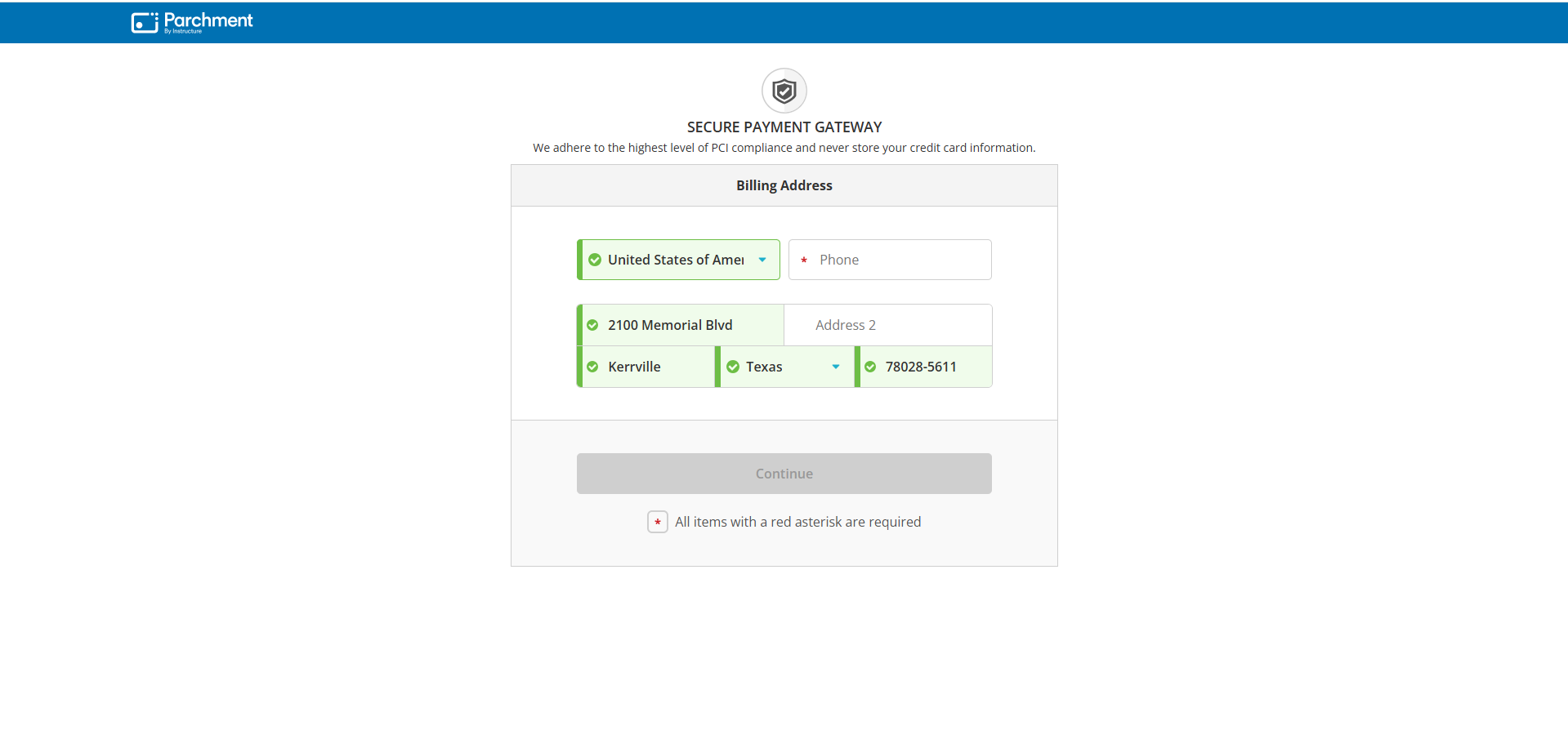
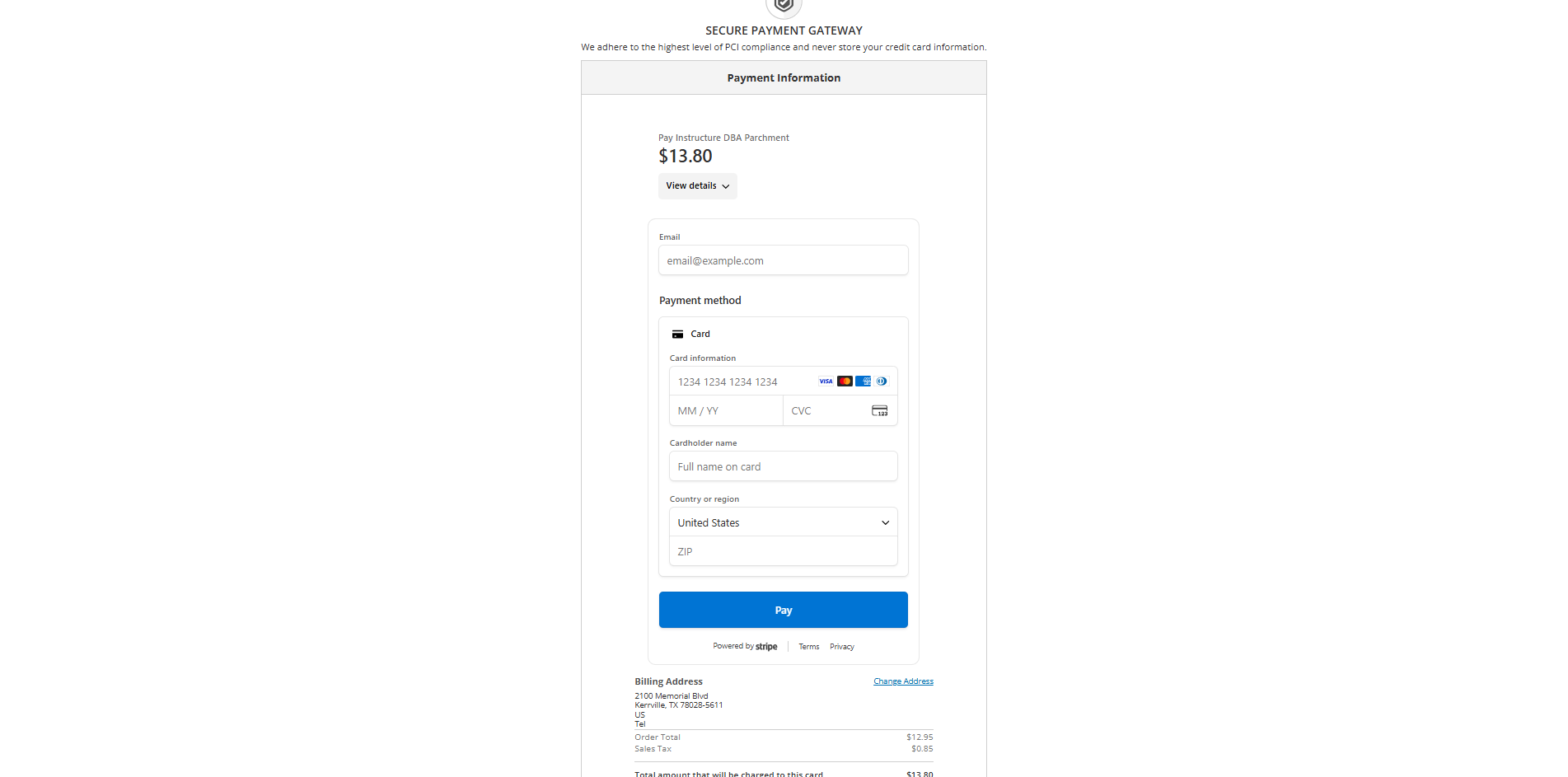
Now we get to pay, here enter in your email, credit card info, and zip code and then click on "Pay."
If your billing address is still wrong, you can change it by clicking on "Change Address."
Once paid, you will get the transcript in the email.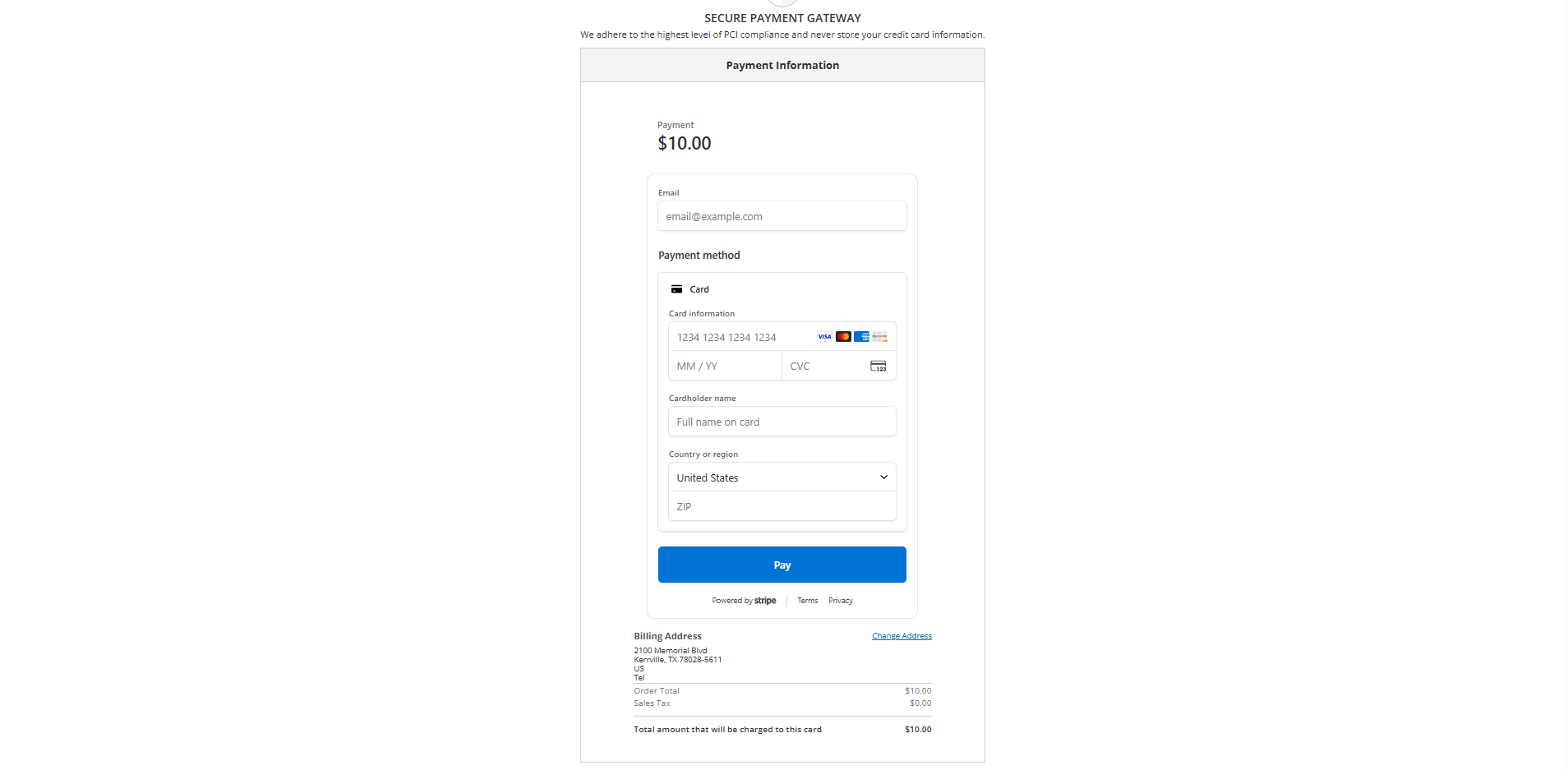
Now the second option, getting the transcript by mail.
Click on "Print & Mailed."
Verify that the information is correct and click on "Continue. 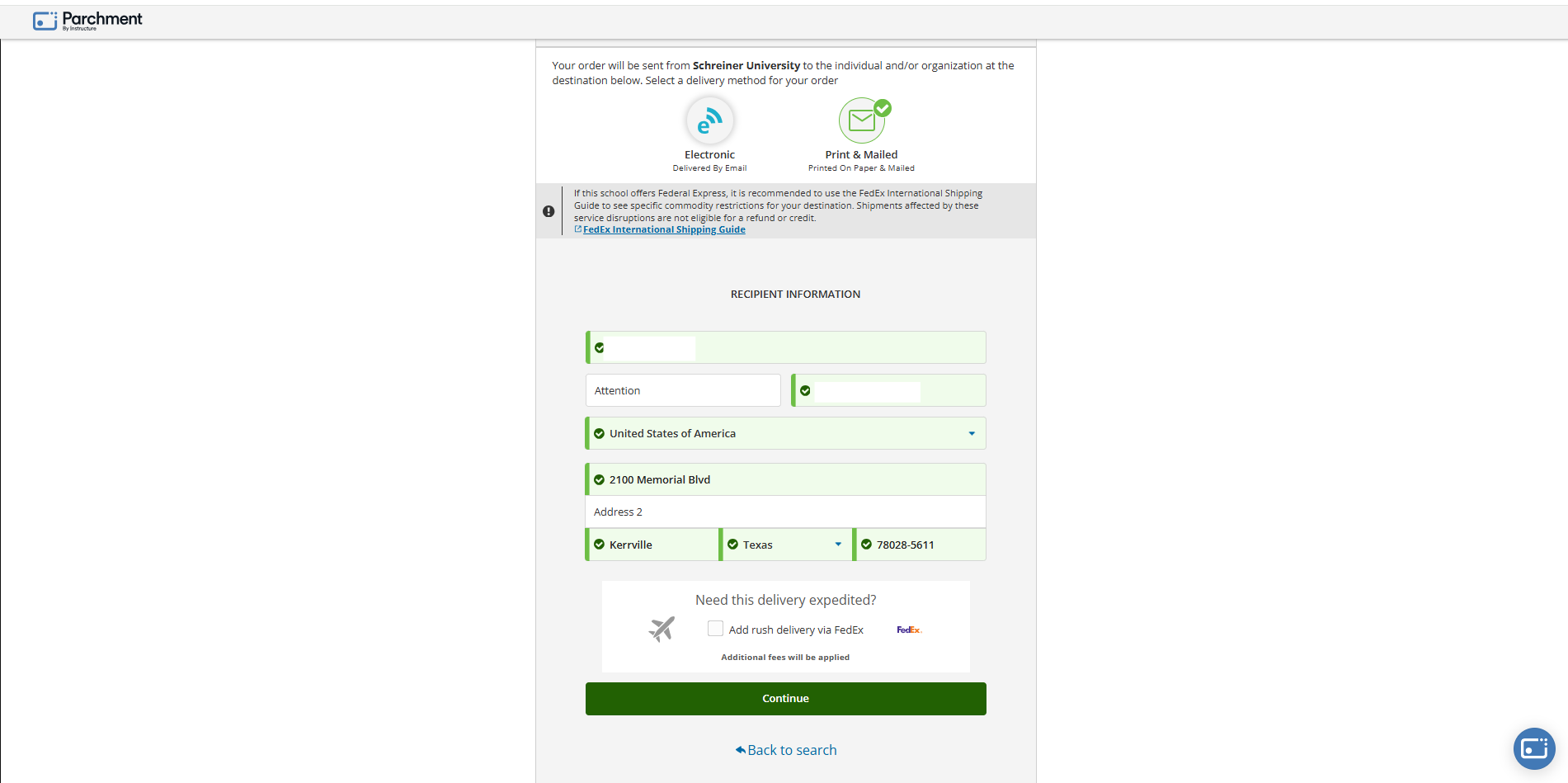
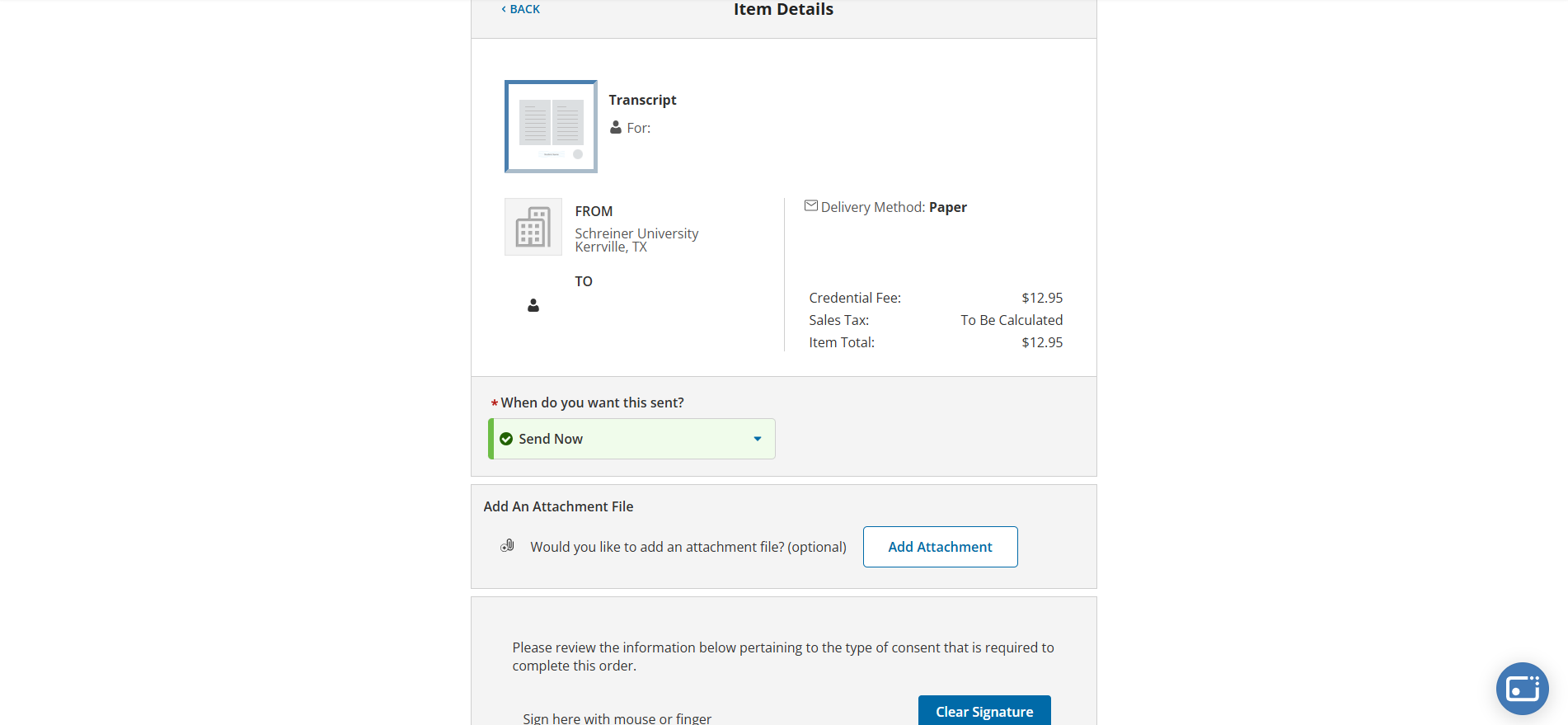
You will be in a new page where you will need to verify that all of the information being provided is correct.
Make sure the transcript is for the right person, where its from and where it is going to, and check over the fees.
If you want to add an attachment you can by clicking on "Add Attachment."
Scroll down a bit where you will need to do some signatures.
Here you will need to sign with a mouse or your finger and will also need to type it out in the boxes provided.
Click on the check box right below it and then click on "continue."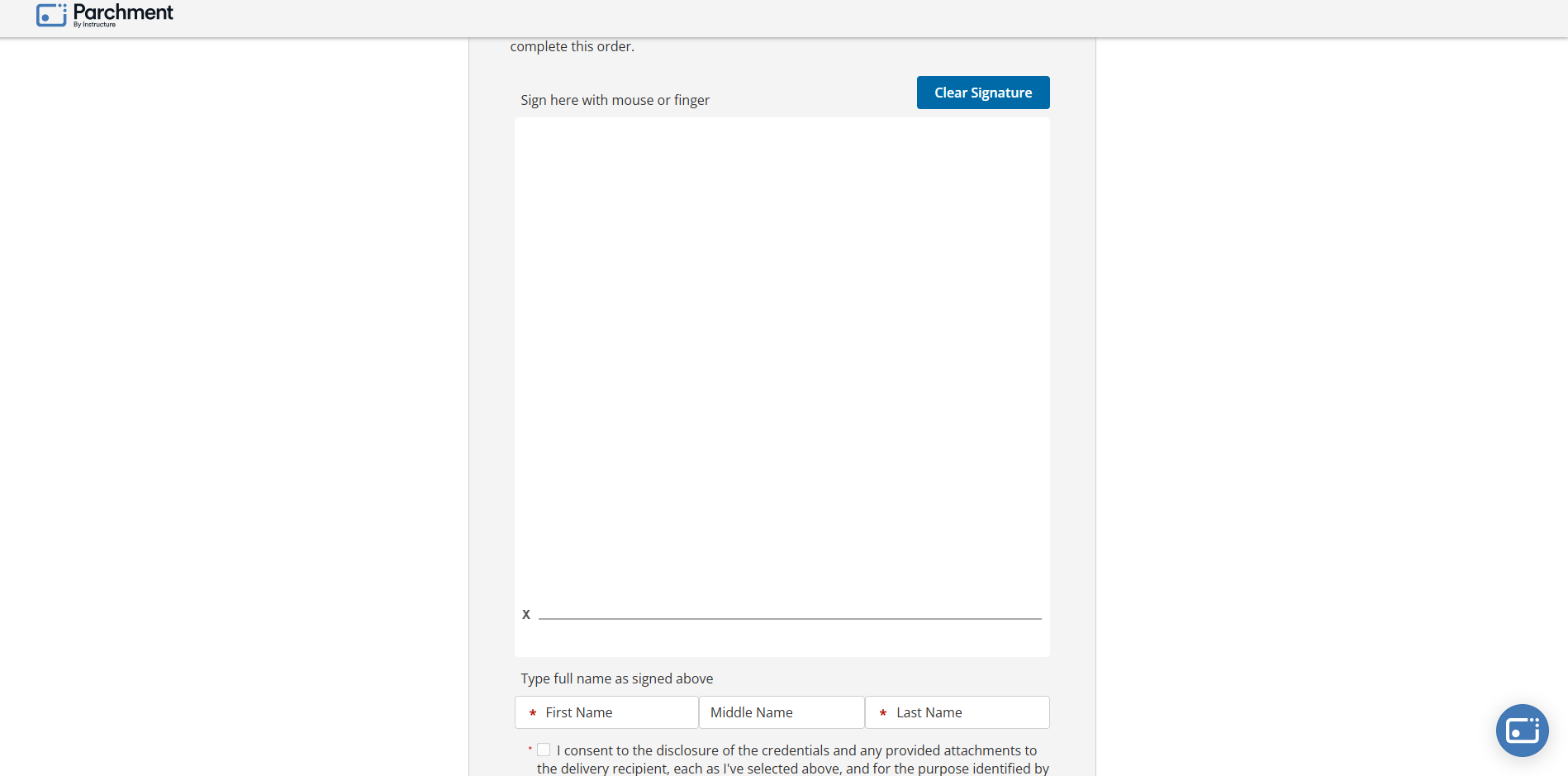
In the order summary, verify that everything is correct and then click on "Continue."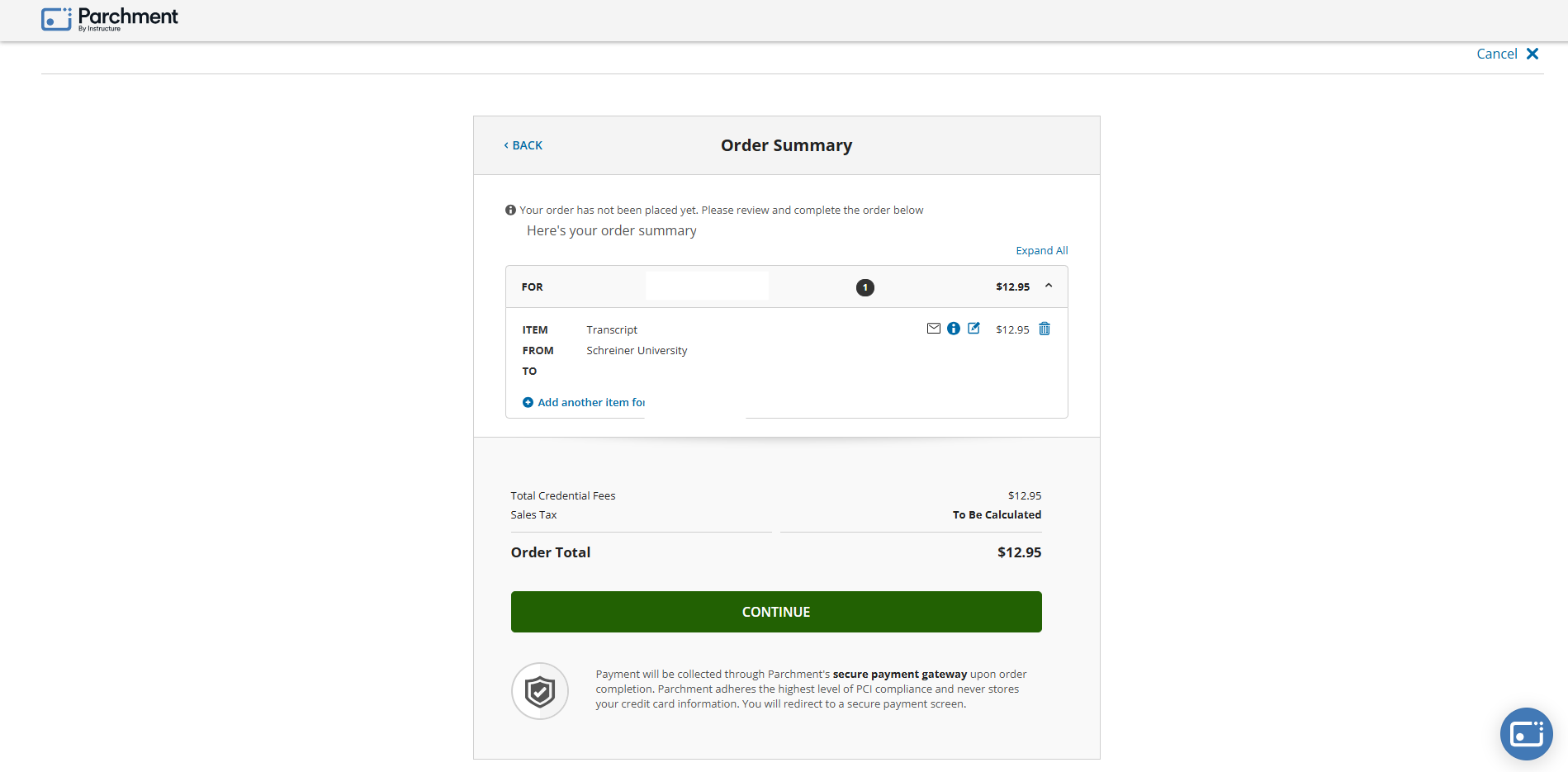
Here you will provide a phone number and verify that the billing address is correct.
If everything is in order, click on "Continue."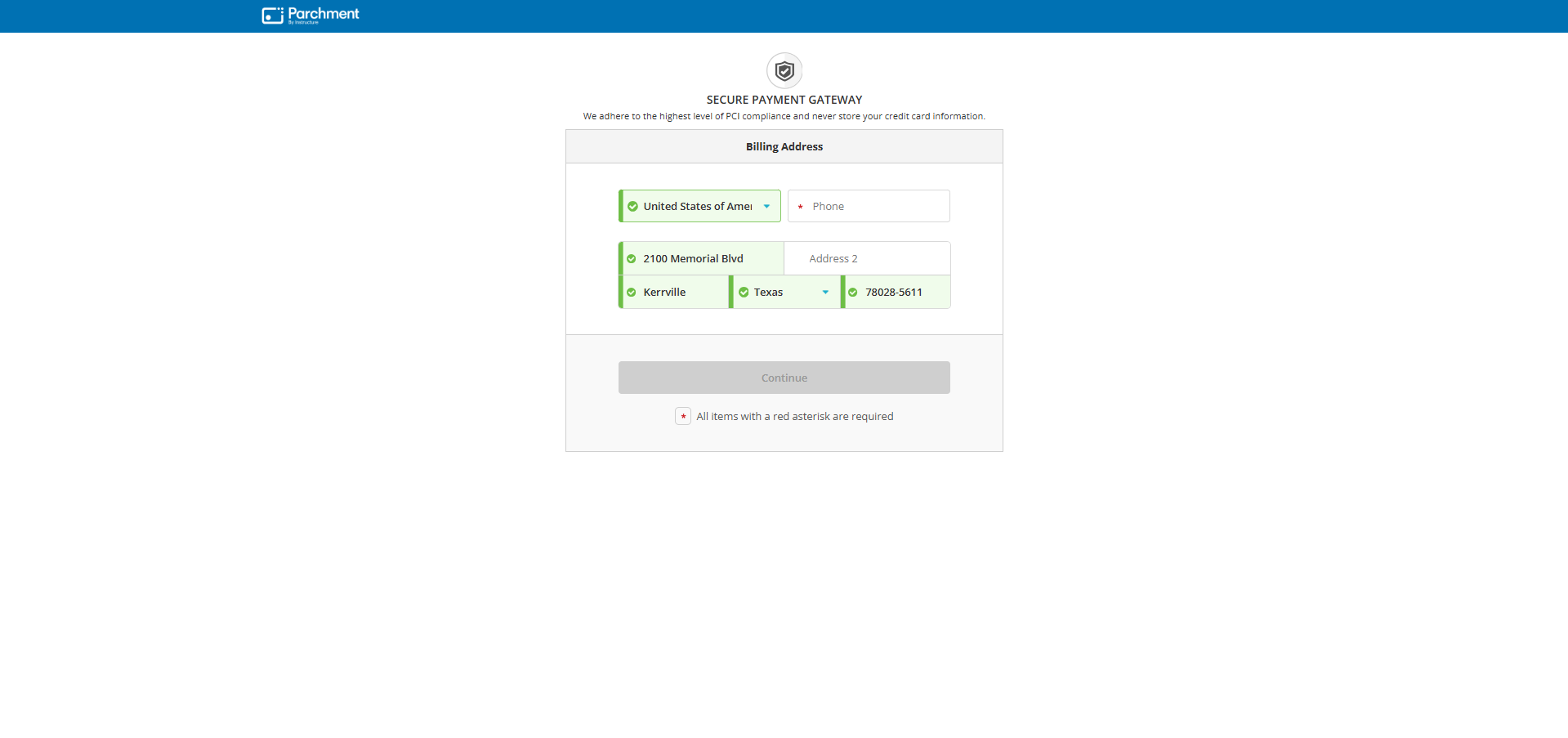
In the payment page, enter in your info, credit card info and zip-code.
When everything looks good and billing address is correct, click on "pay" and the transcript will be on its way.
If you have any questions that were not answered in this article, please contact the Registrar at ((830)792-7356 or email at [email protected] for more help.

