


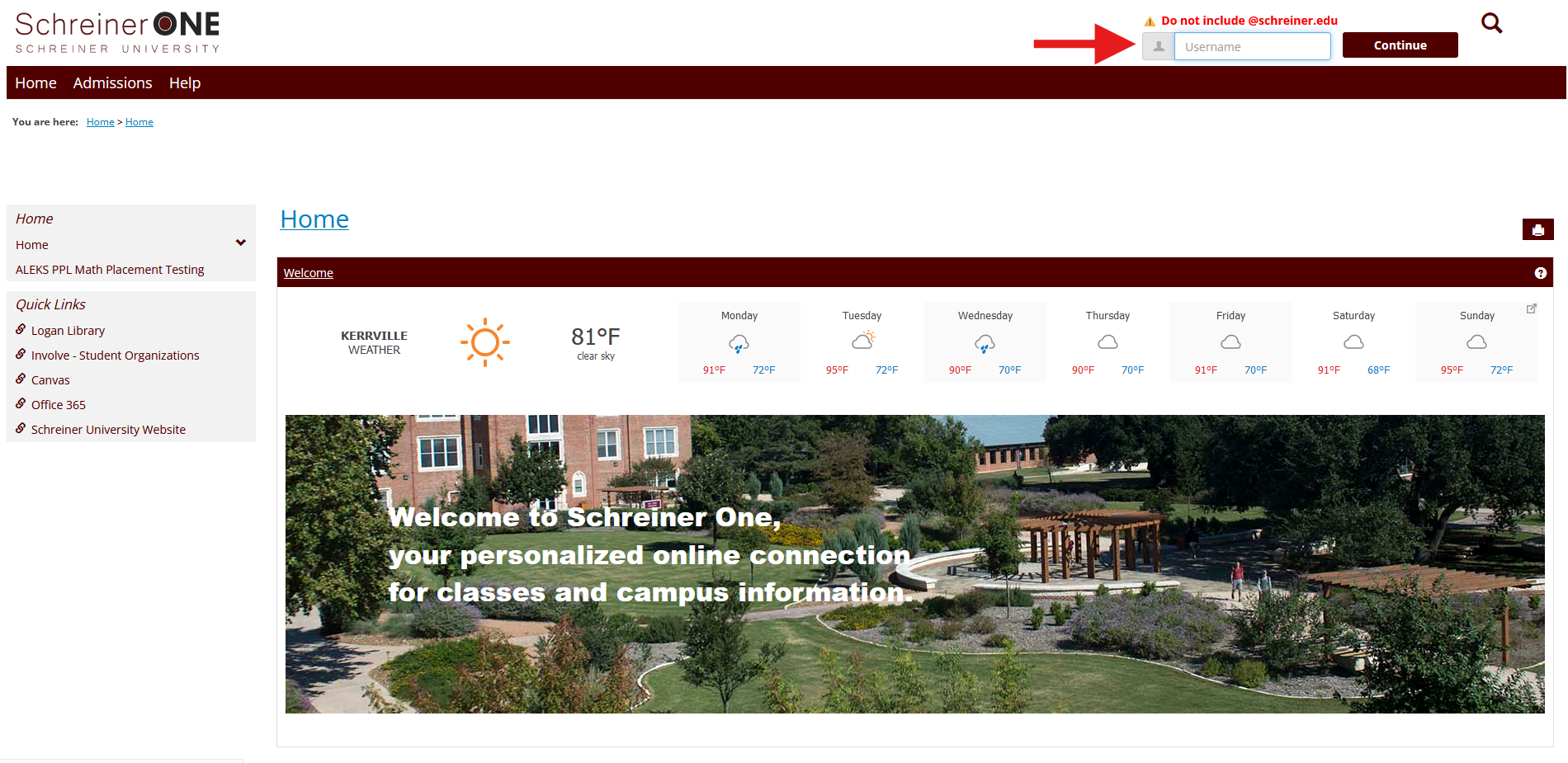
1.) Log into Schreiner One with your Student Account (Excluding @schreiner.edu.)
2.) Once logged in, click on the "Students" Tab, scroll down until you see either the "Student Schedule" or "Print Your Schedule" section. Click on the 'View Details'/'Printable Schedule' link, and either of those links will take you to schedule details.
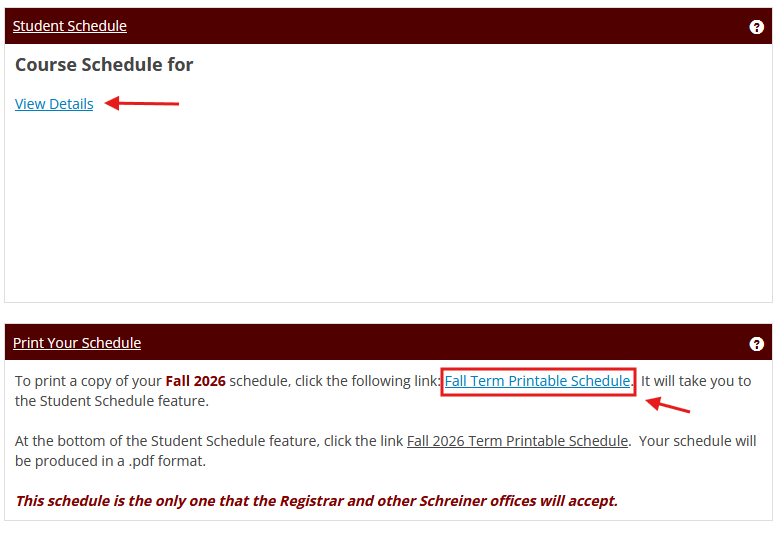
3.) Click on the "Printable Schedule," and it'll take you to a new page with options to either print it as a PDF or to your printer. Alternatively, you can click Print Page (the printer icon at the top next to the gear icon). It will print the whole page instead of the schedule page.
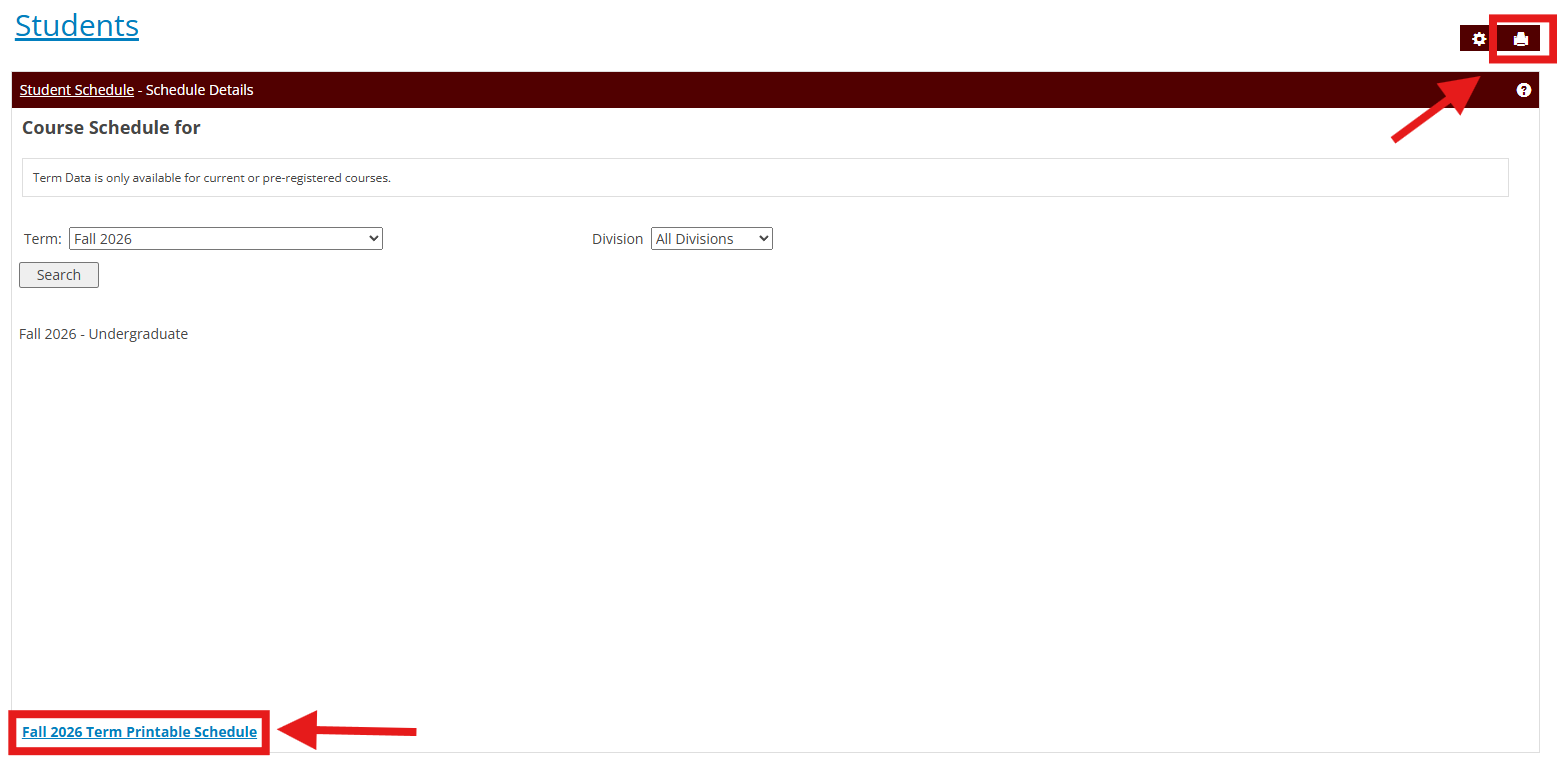
4.) It'll now take you to a new tab. Print either a PDF of it or directly to the Printer. If you have any issues or any questions about it, you can contact the Help Desk at (830) 792-7344 or email [email protected].

