


This article is here to help you on how to change your password.
First you will want to go to a browser and search for "Schreiner One", click on the first search result that says "Schreiner one: Portal Homepage | Home" or click on this link https://info.schreiner.edu/ics
Once in Schreiner one, click on the "Help" tab. 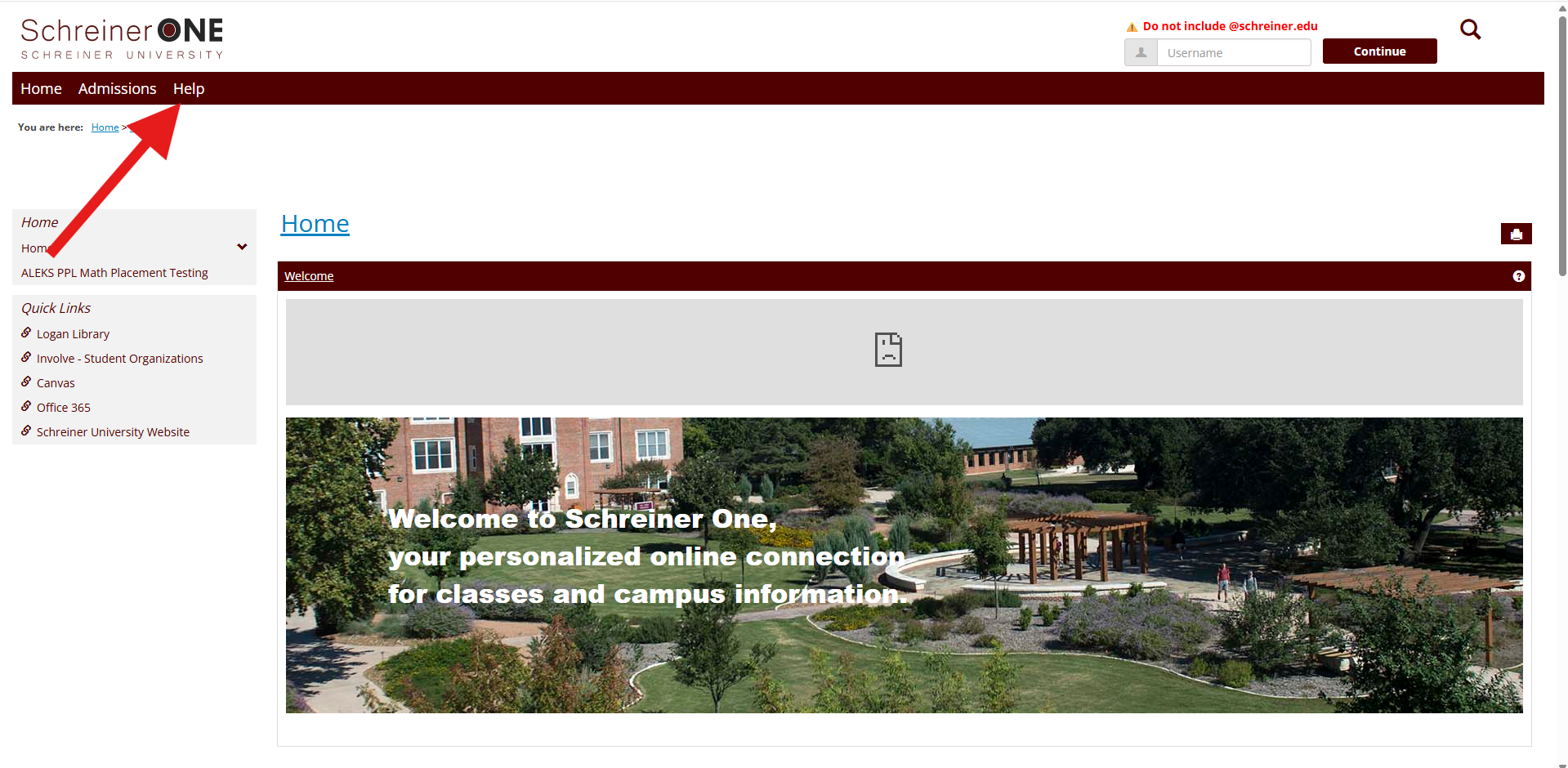
in the "Help" Tab. Click on "My password, either one works. You can click on the one in the left panel or the one with the link. 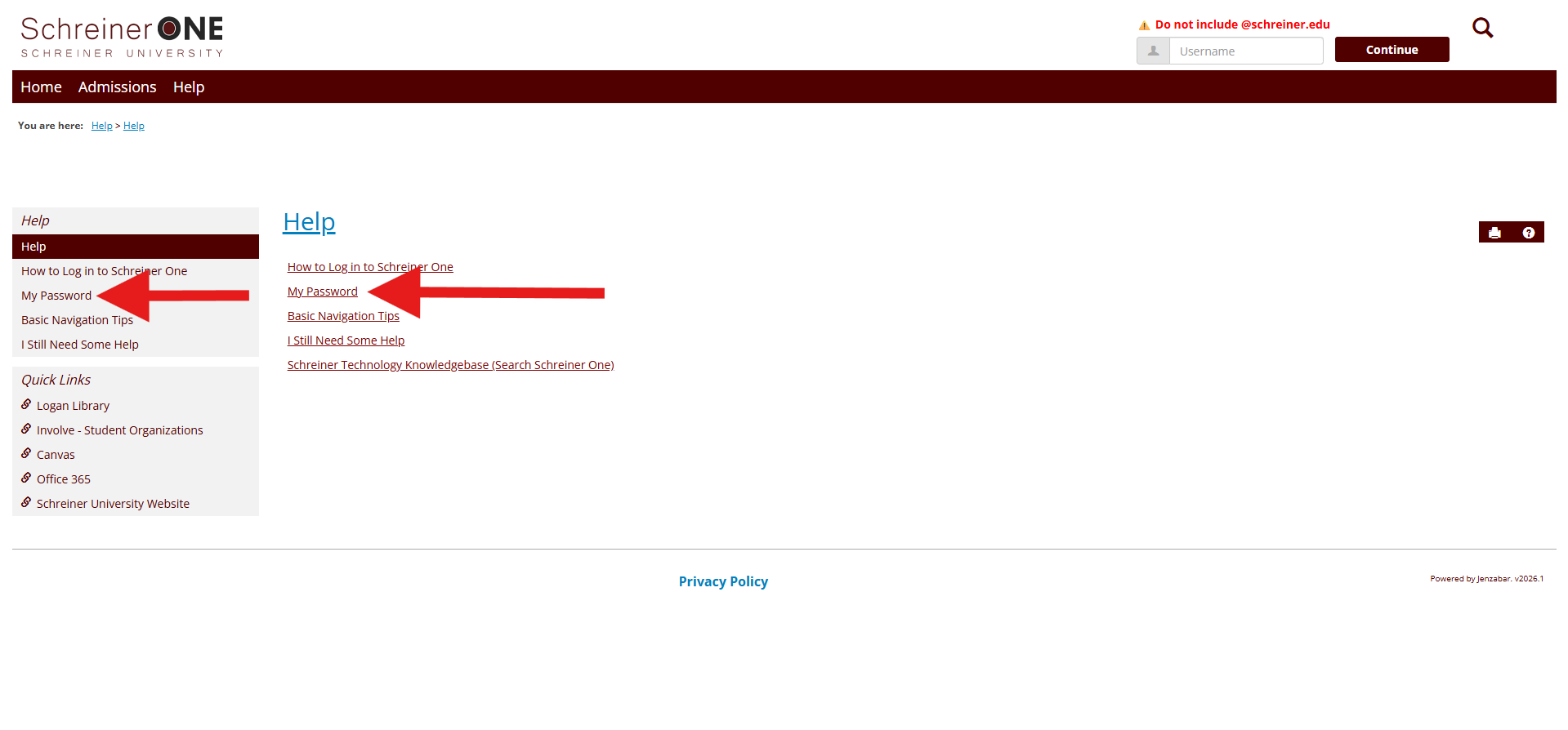
In the "My password" window, you will see a set of instructions.
If you are currently a Schreiner Student, click on "go here."
If you are not currently a student, read the section below the "Forgot Your Password or Change Your Password."
Where it says "enter your username and click continue", you will do that in the top right corner.
*NOTE that the password reset link does expire in 24 hours. 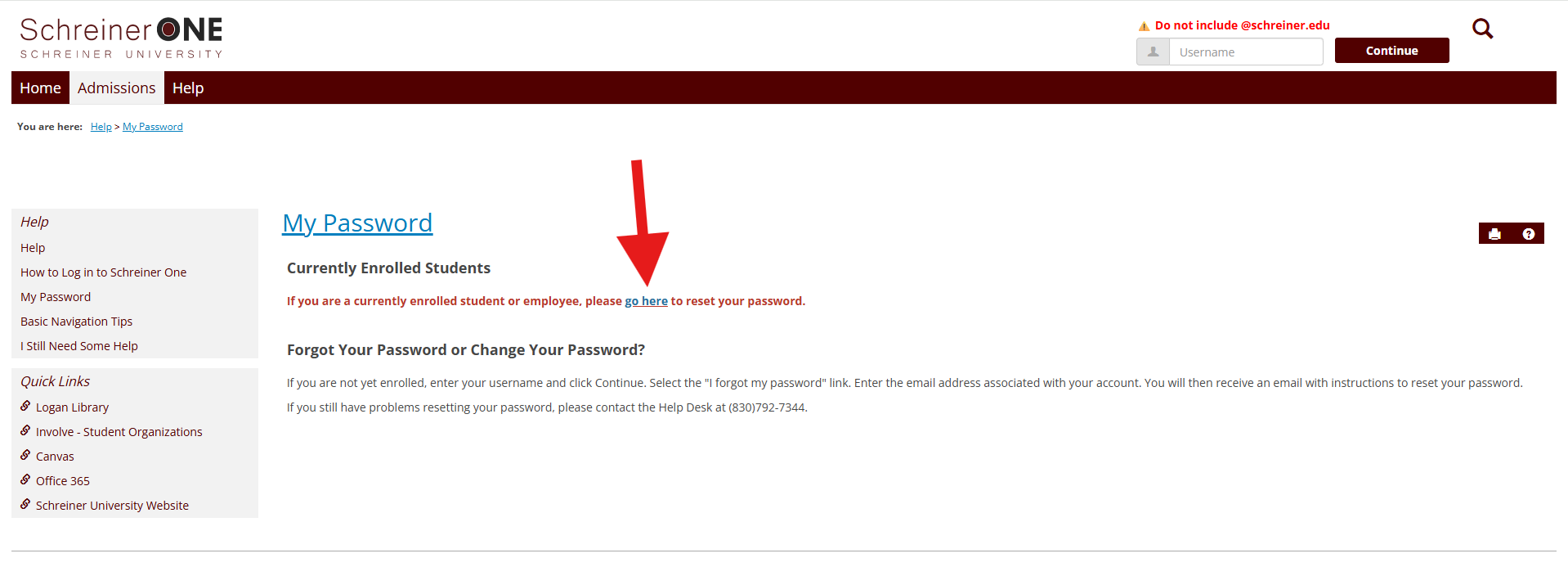
For the Students that are currently enrolled in Schreiner. This is the next step.
You will be asked to enter in the number provided into the Authenticator app. It will ask if you want to stay signed in, you choose whether "yes" or "no". 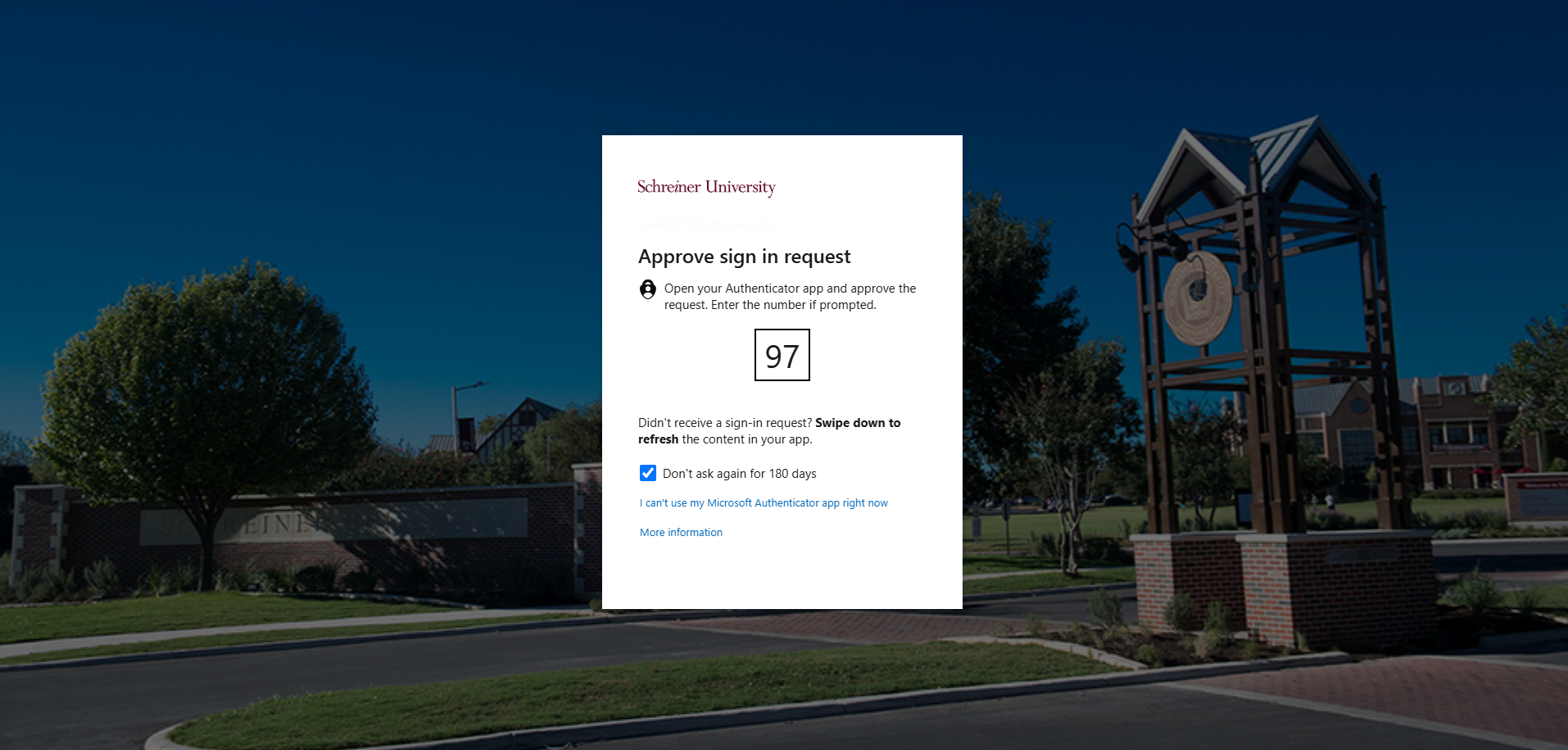
Once that is done, you will be in a new page. Here you will be able to change your old password into a new password.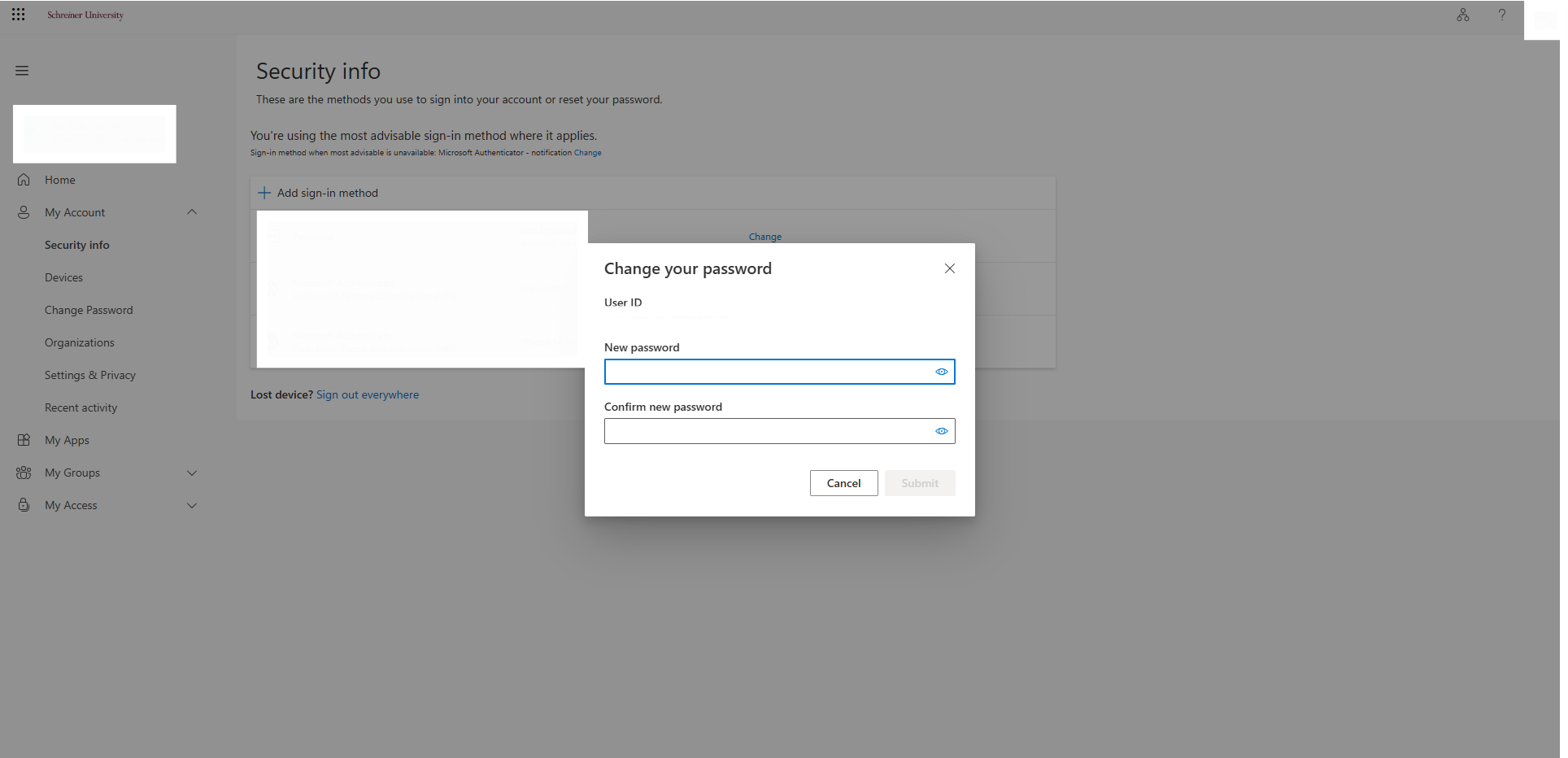
If you are having any issues with resetting your password, please email [email protected] for more help or contact the Schreiner IT department at (830)792-7344.

