


Search "Schreiner One" in a browser and go to the top right corner to login with your schreiner username and then click on "Continue."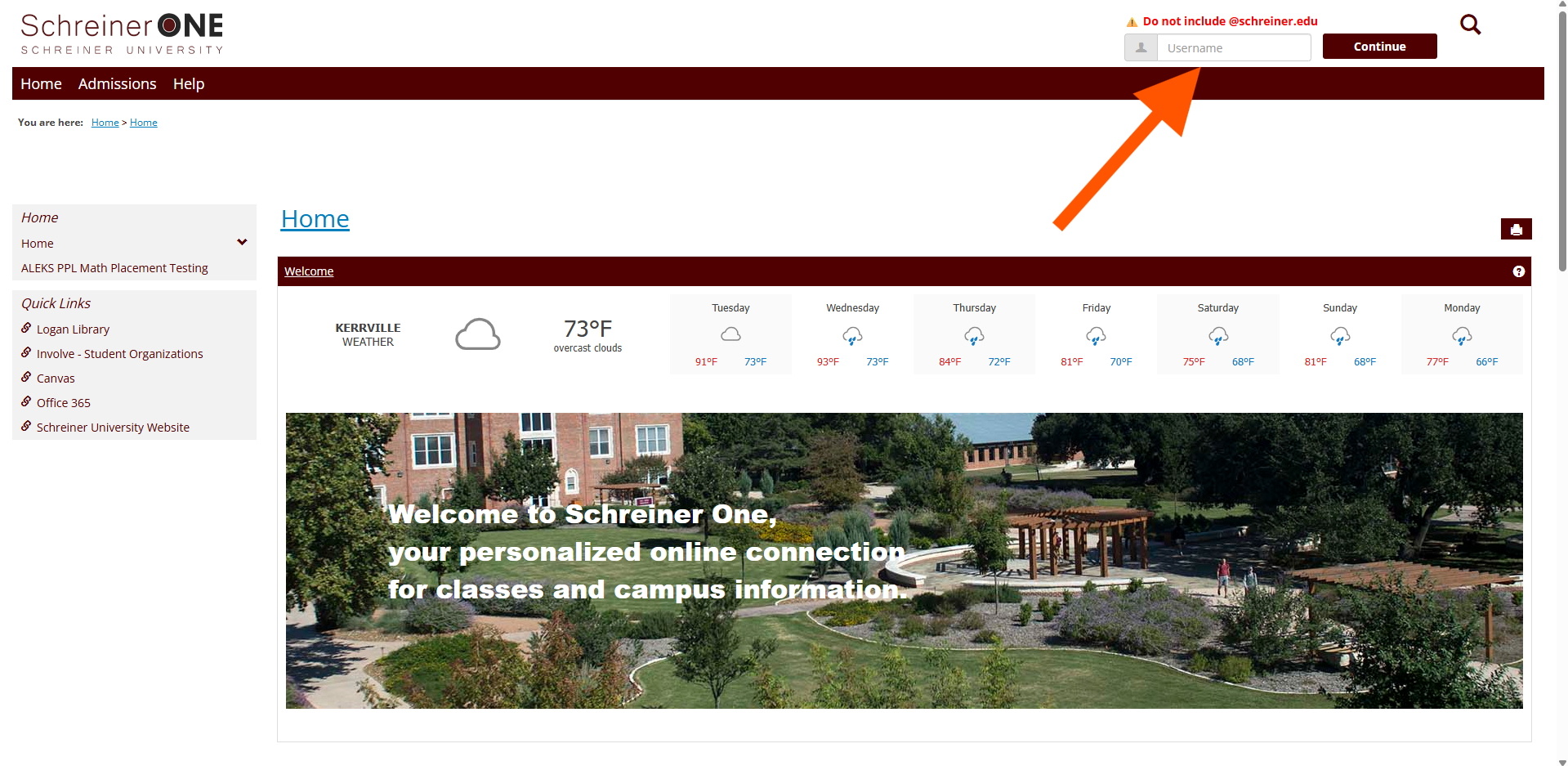 Once you clicked "Continue", you will be in a new page where you will need to enter in your schreiner email, then click on next.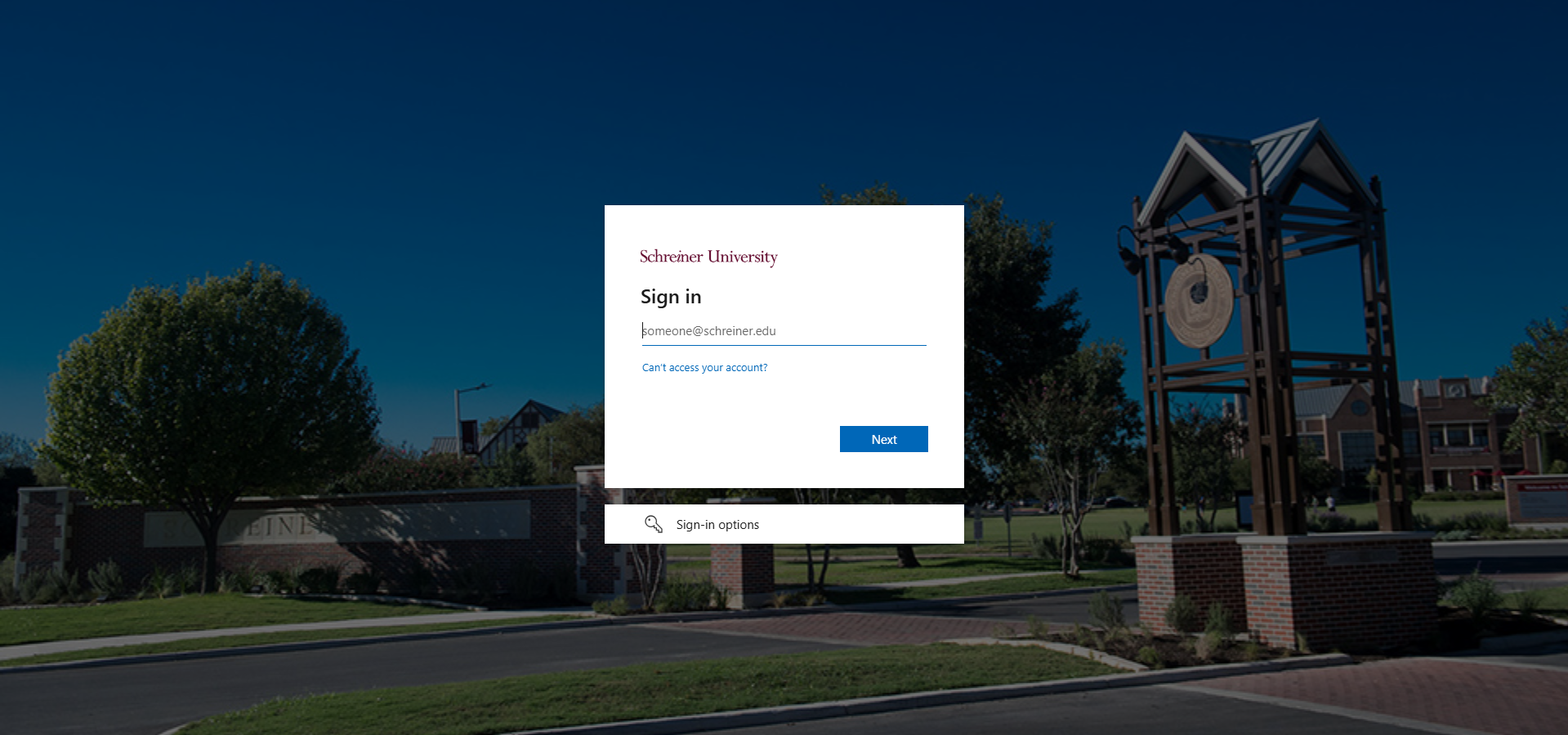
You will then be asked to enter in your password for the schreiner email, then you will click on "Sign in."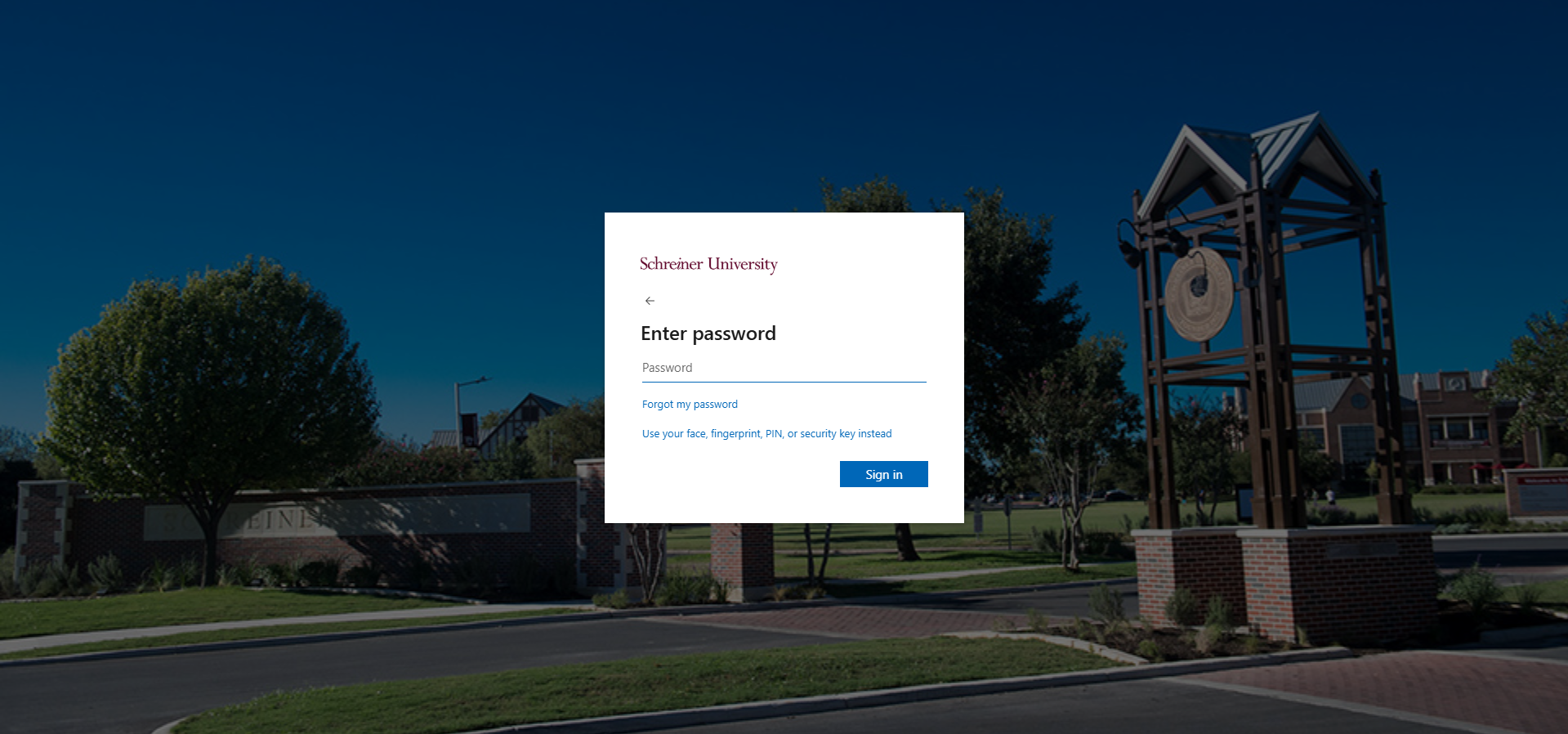
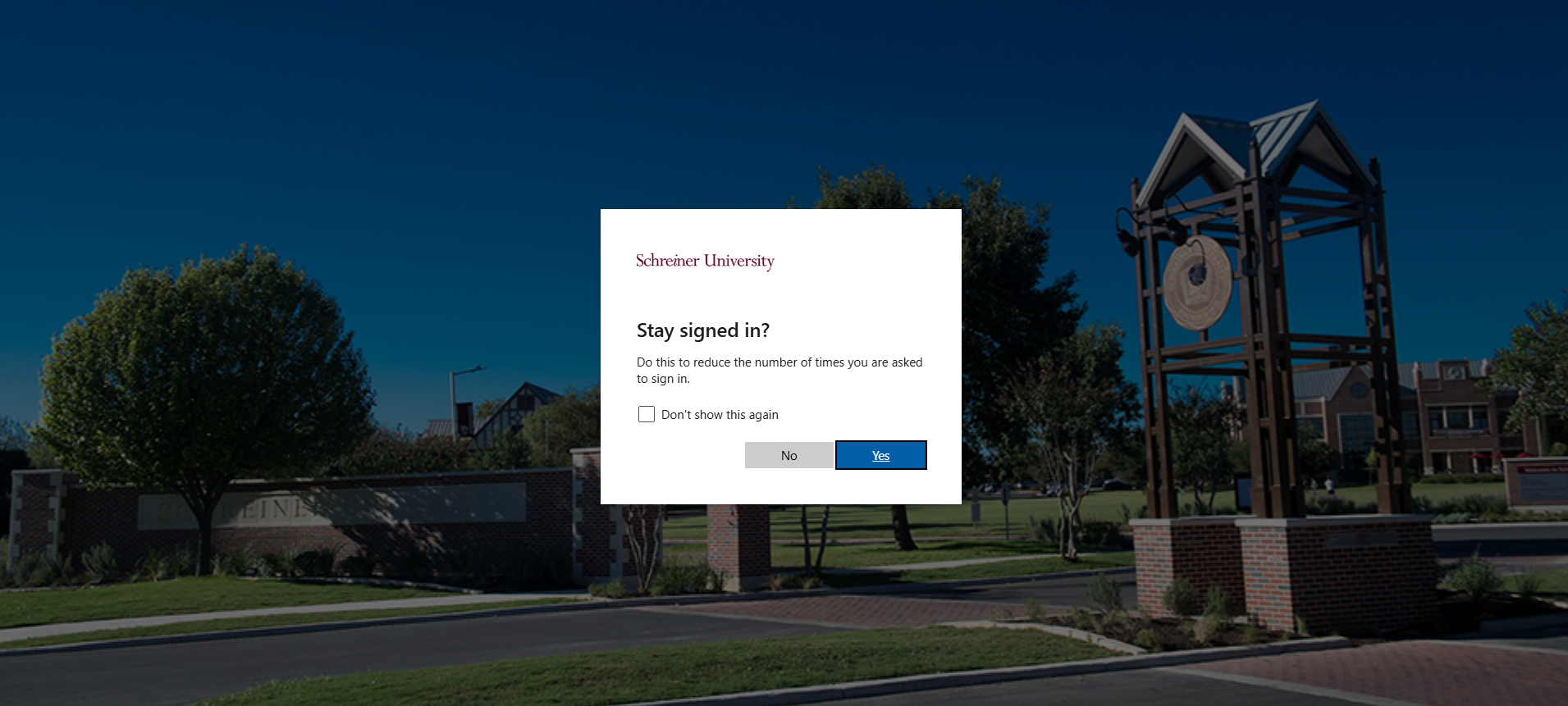
It will ask you if you want to "Stay signed in"
This means if you hit YES, you will NOT be asked to enter in your email and password every time you want to log into Schreiner one.
If you hit NO, you WILL be asked to enter in your email and password every time you want to log into Schreiner one.
*NOTE: select YES if you are using your personal device, like your phone or laptop, as you will always be logged in and no one will be able to see your information.
Click on NO if you are using a school computer or borrowing a device, so the next person does NOT see your info.
Once logged in, you will return to the home page and see more information.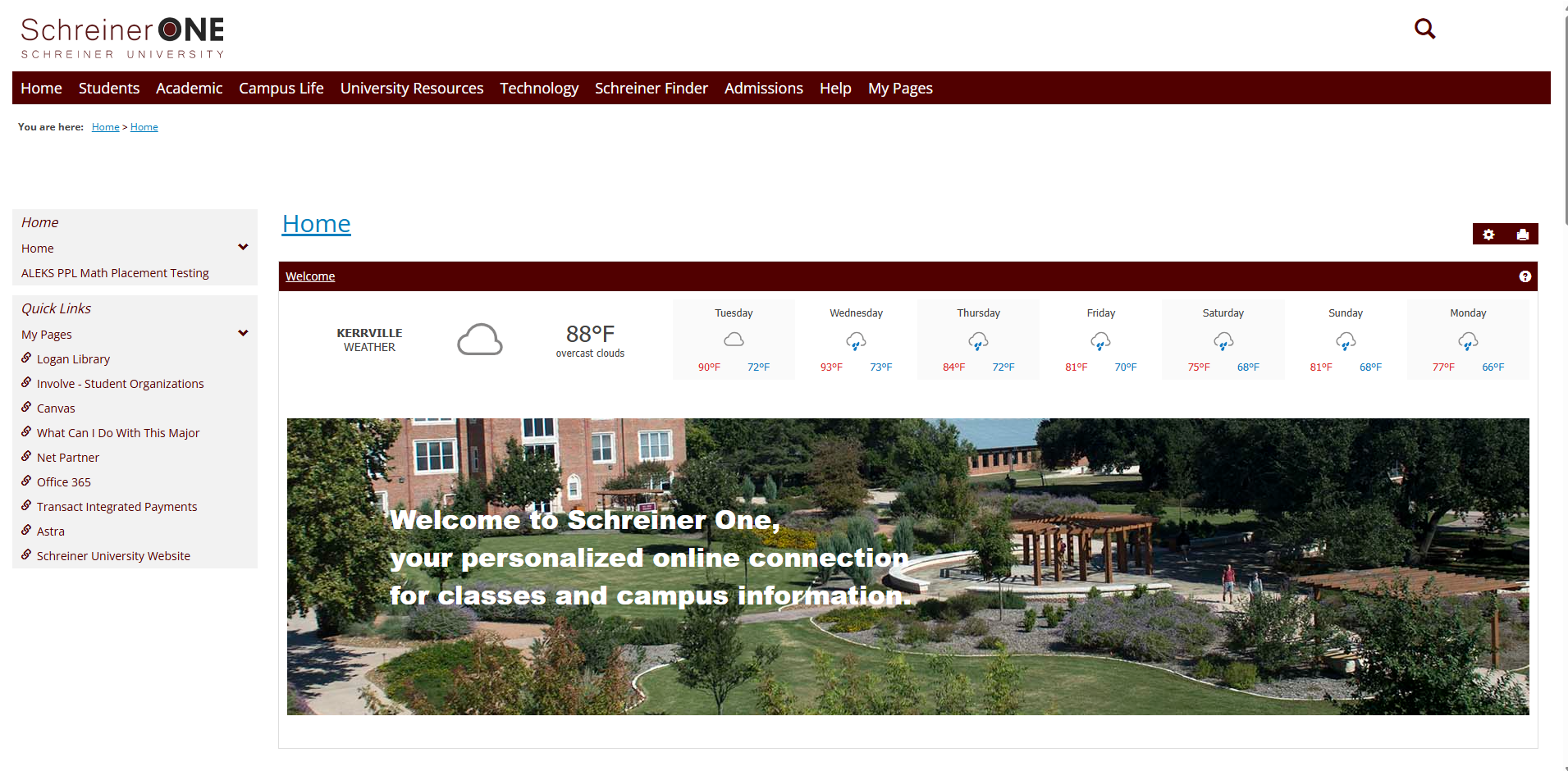
To logout of Schreiner One, click on the top right corner, your profile picture, and click on "Logout." 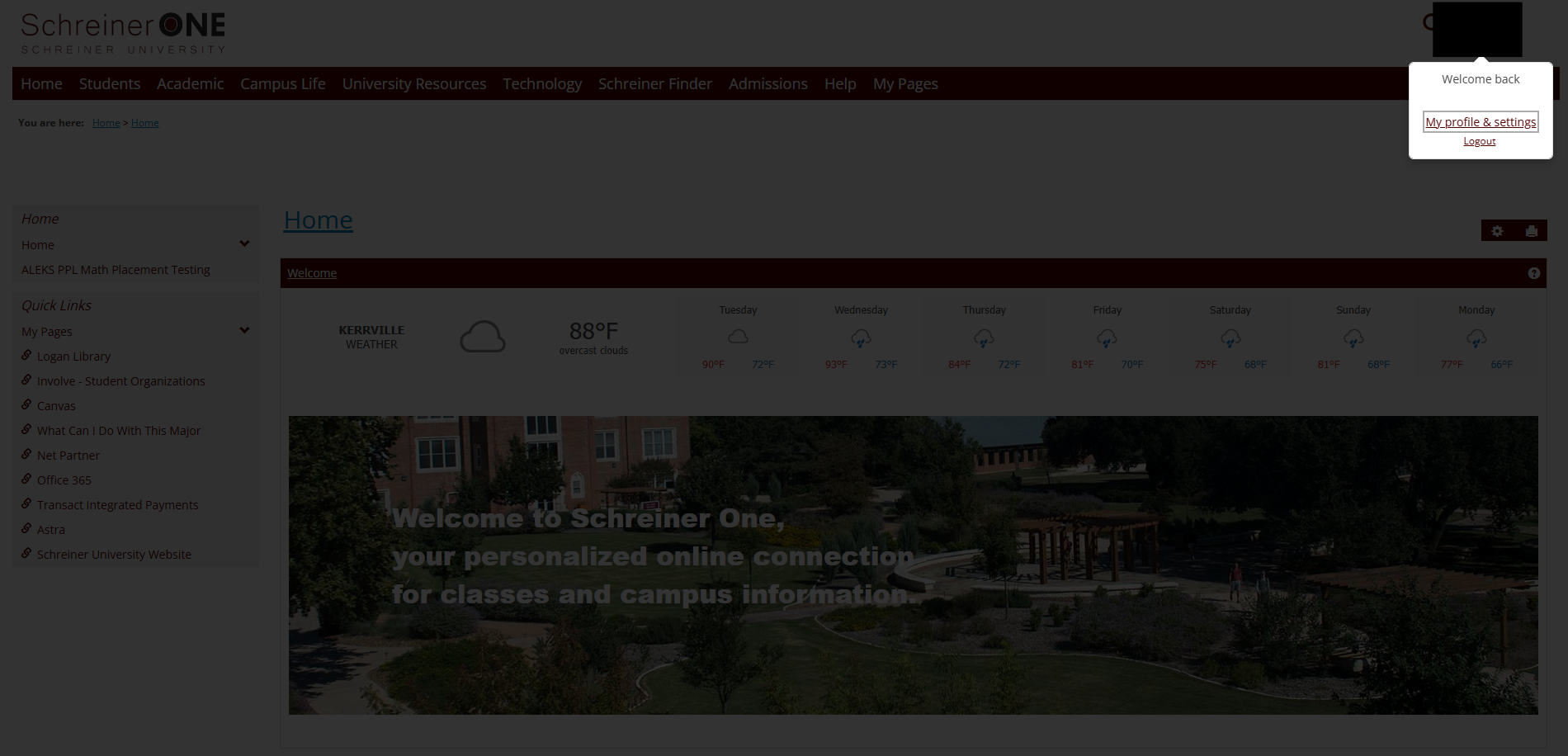
If you have any questions that were not answered in this article, please contact [email protected] for more help.

