


Navigate to the Microsoft forms on a browser.
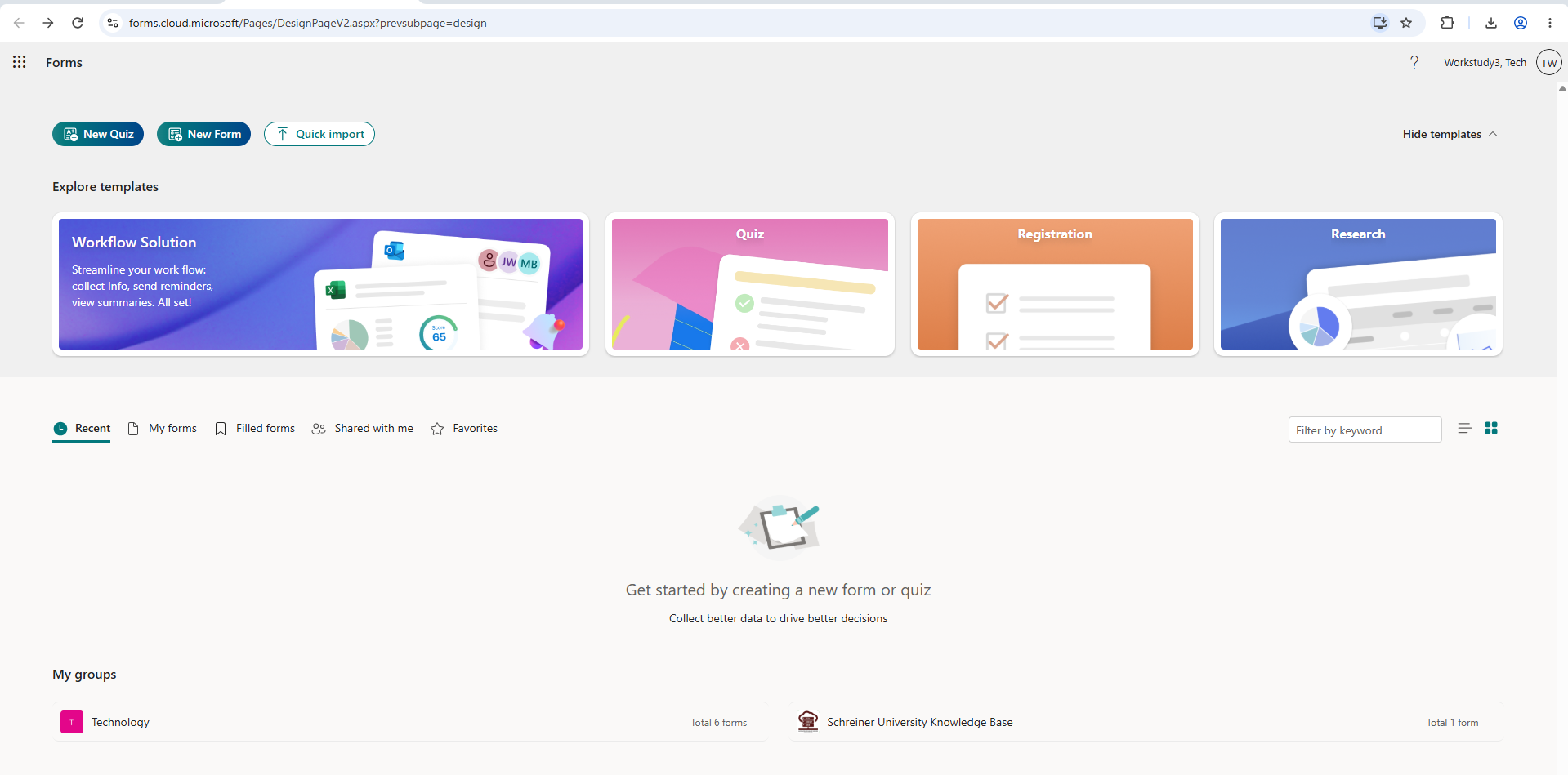
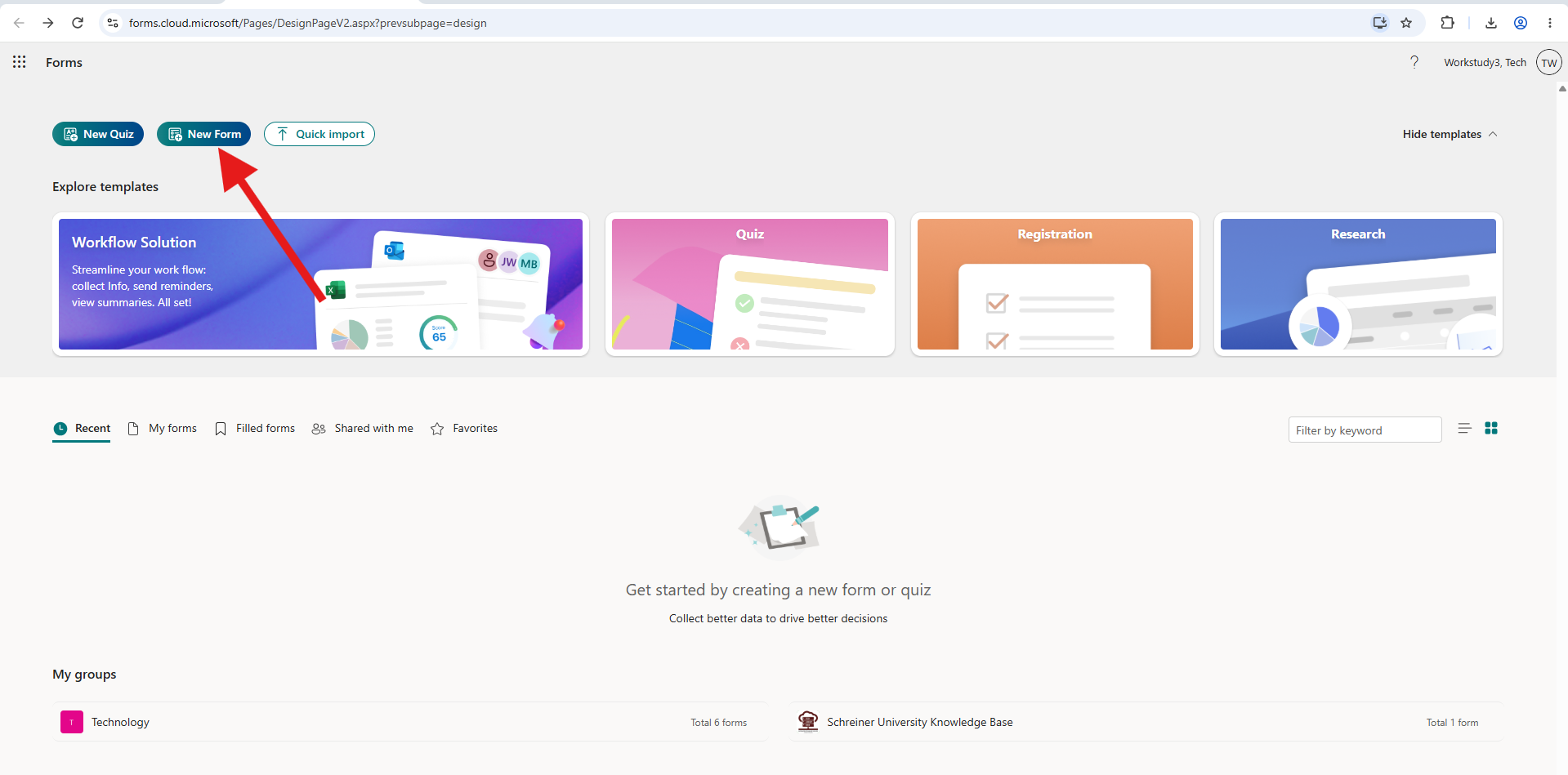
Click on "New Form"
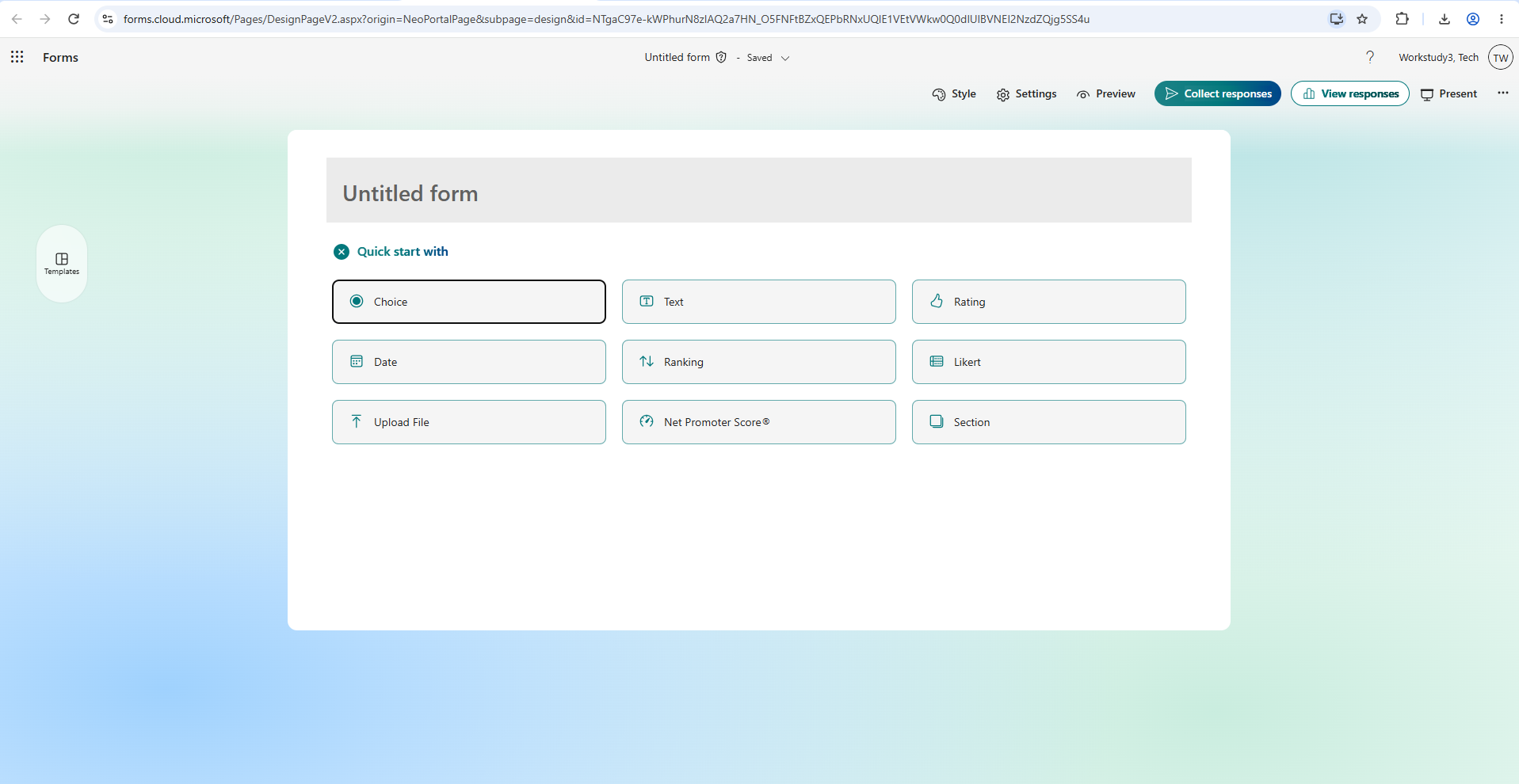
Here will be many options to chose from. First, you can choose any answer type for the question. It could be multiple choice, text, or ranking. Any of your choosing.
After choosing an option, for this example we went with "choice", you can type out the question and answers, and you can also add as many multiple choice answers as you want.
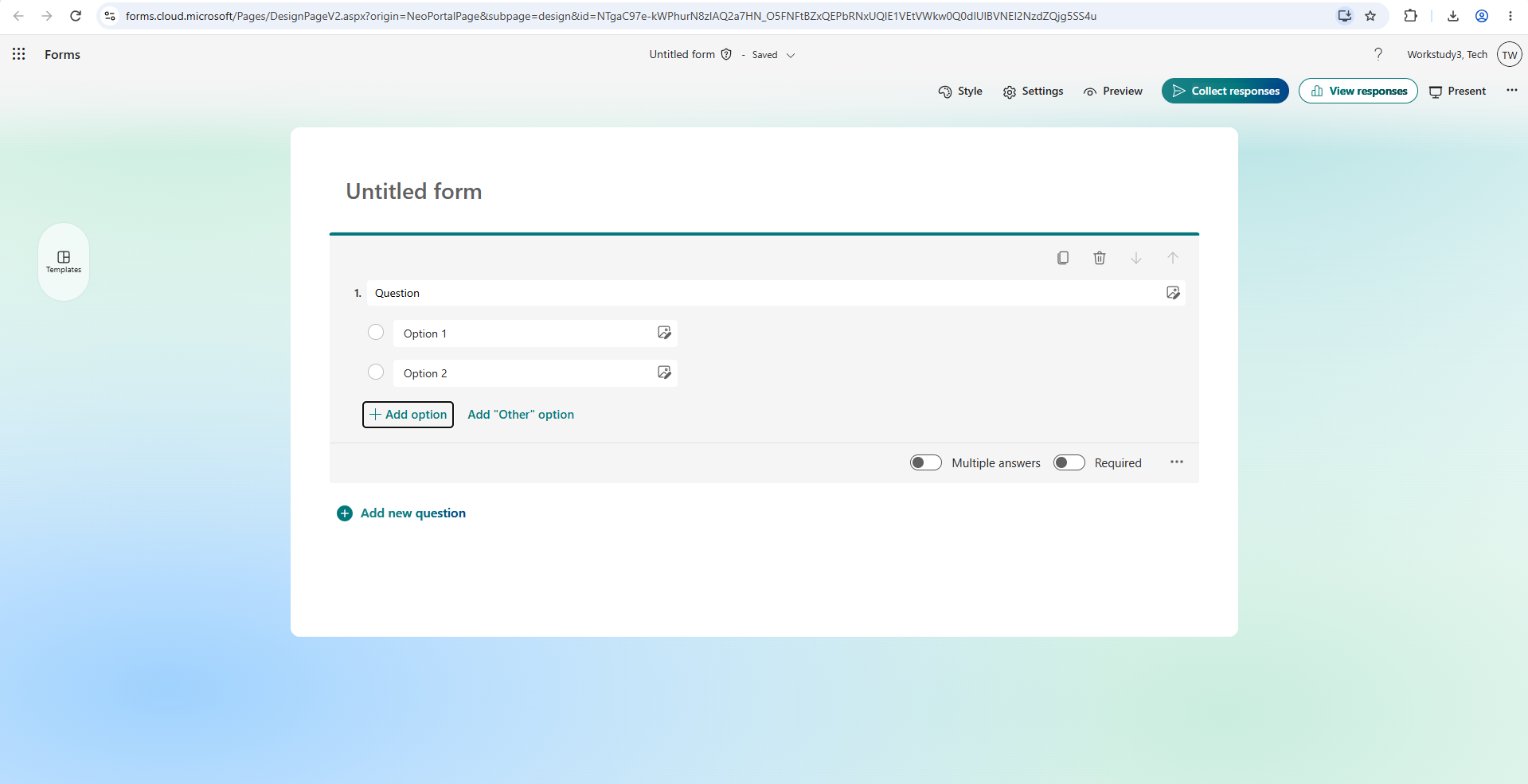
Click "add new question" and you can chose any type of question you would like. 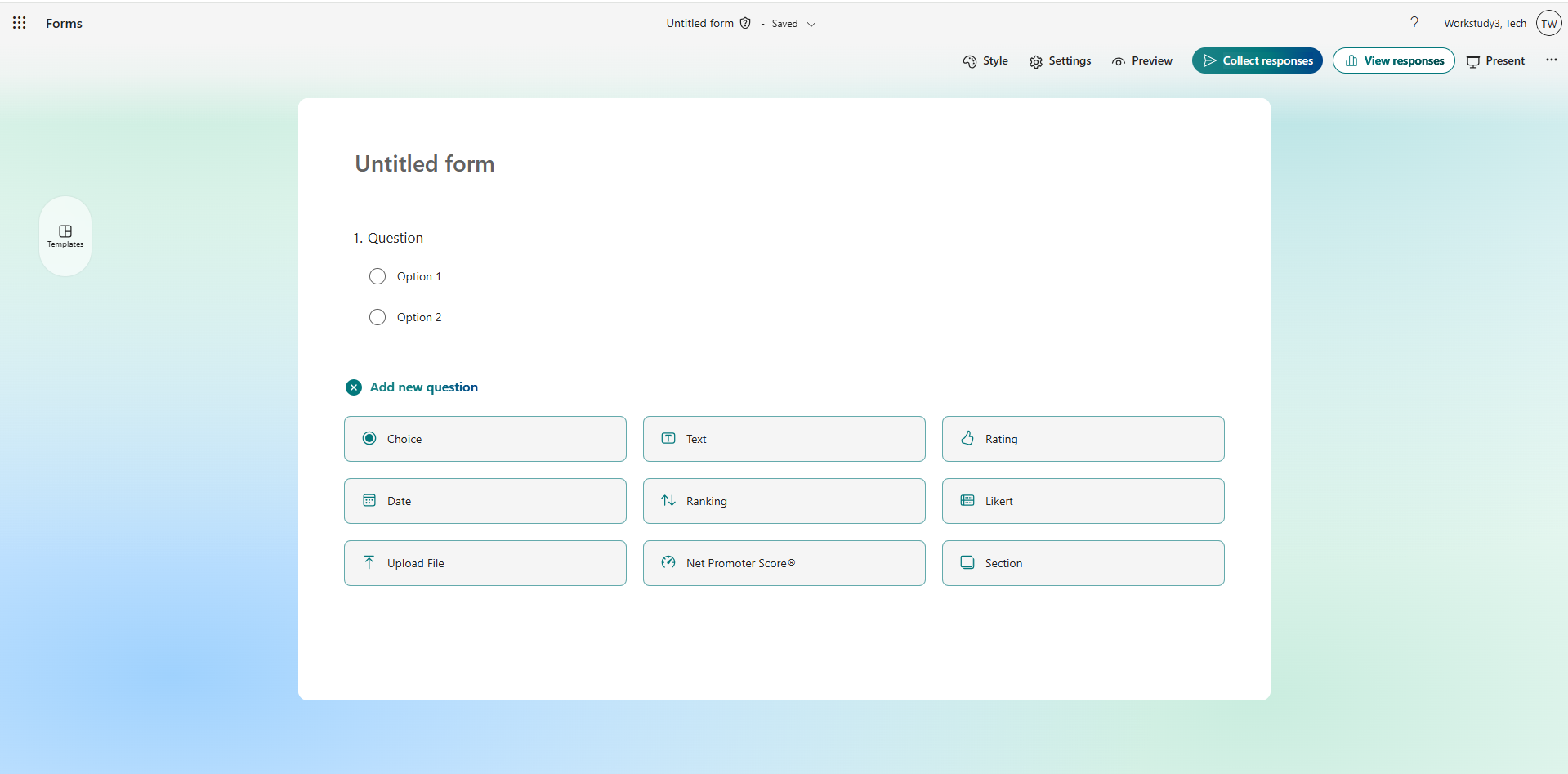
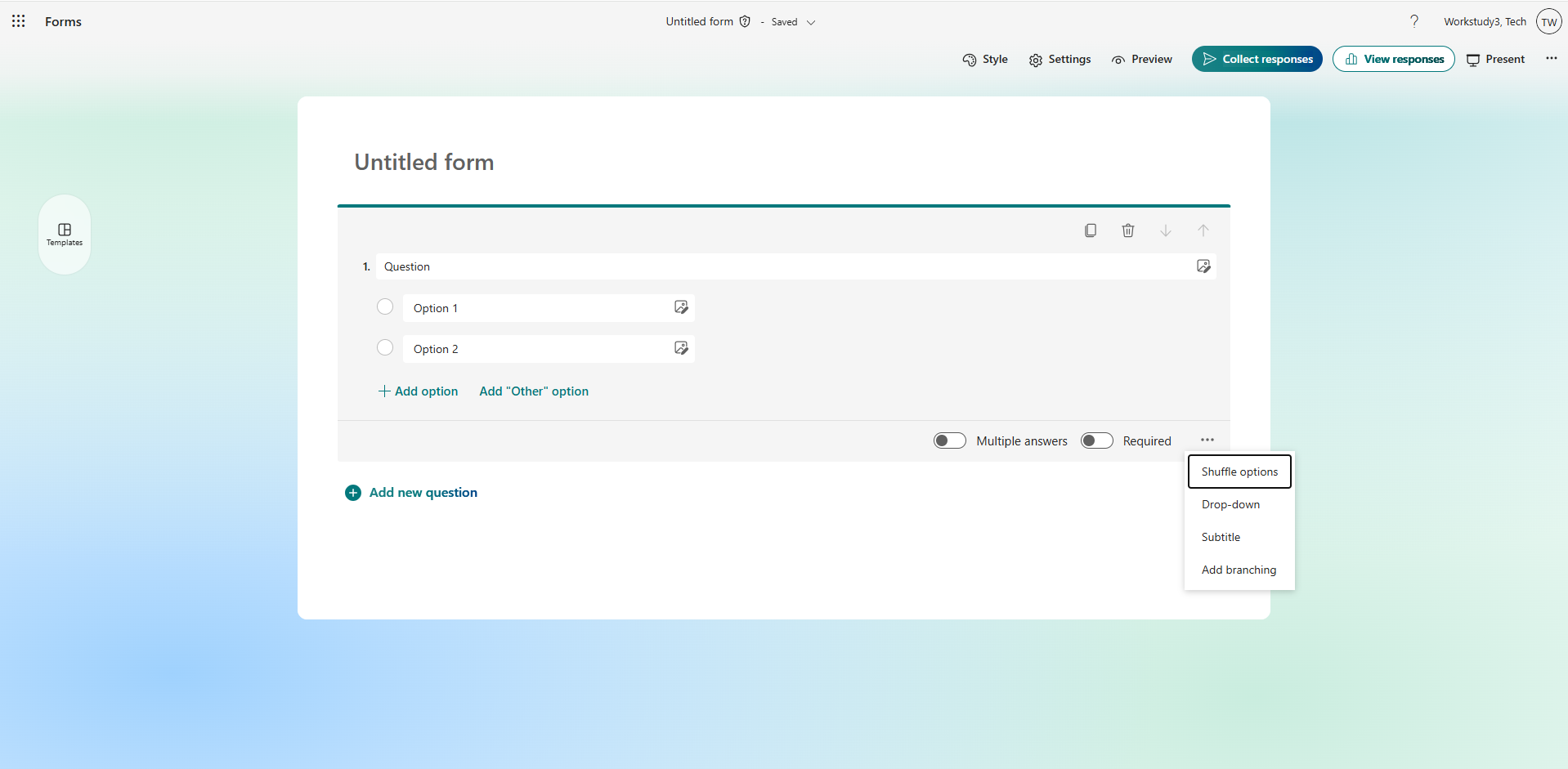
There are even more detailed settings for each options in the 'tripple dots' menu.
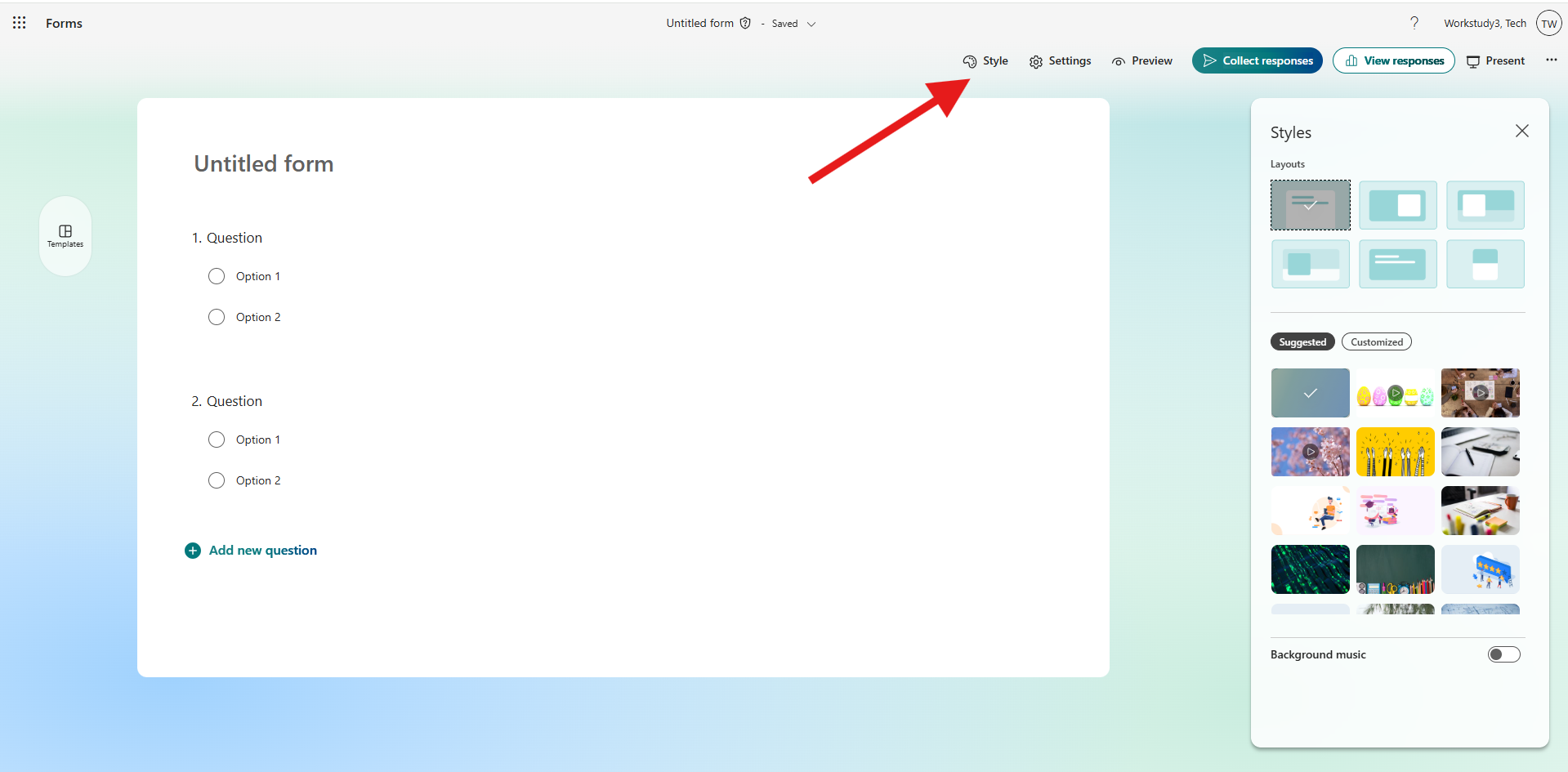
If you want to make the form more exciting for people to fill out, you can even change the theme!
Click on "Style" here you can change the layout, background, and even background music if you want.
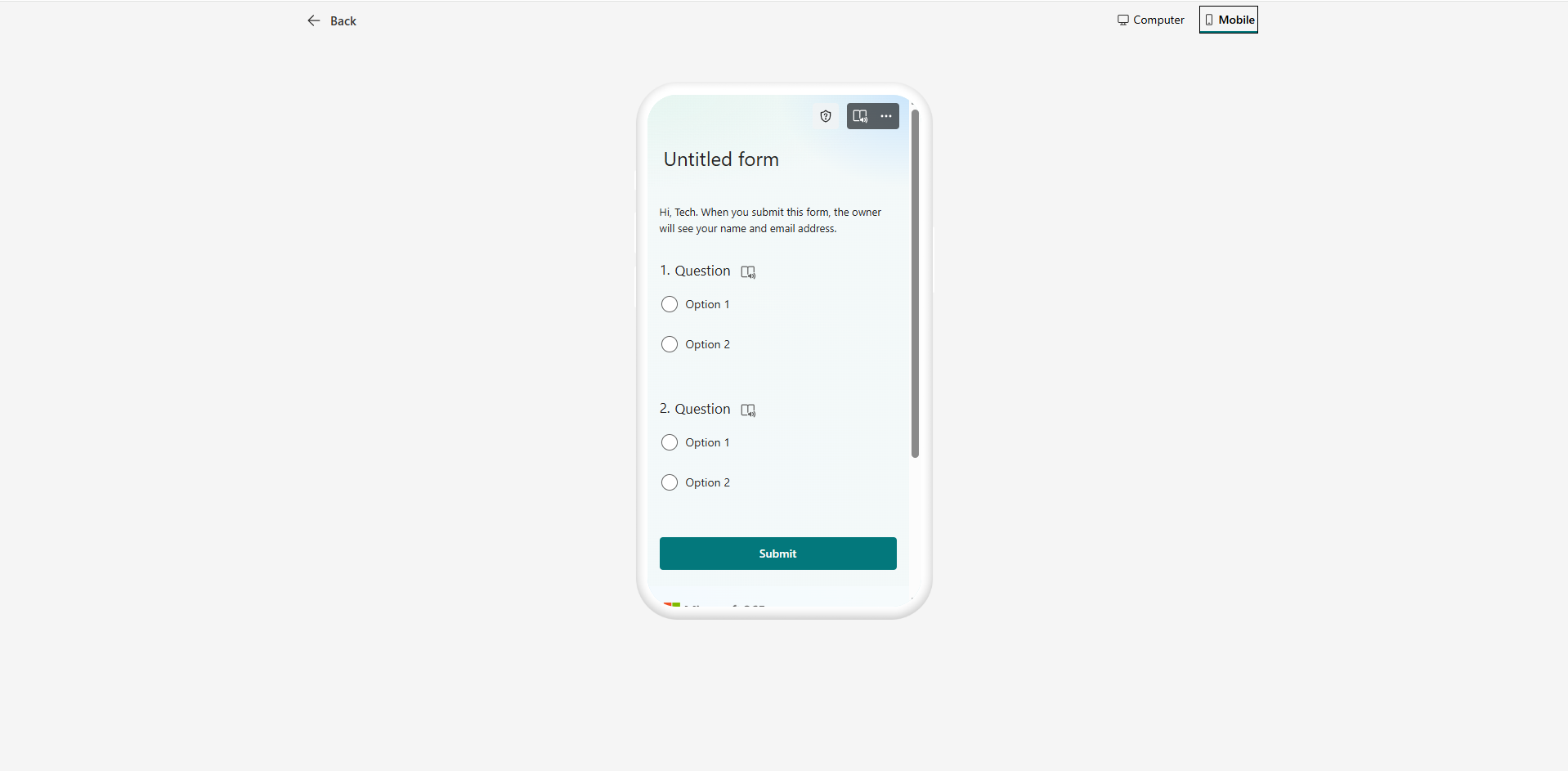
You can even load a preview what your form or quiz will look like on mobile devices and computers in case you want something to look a certian way.
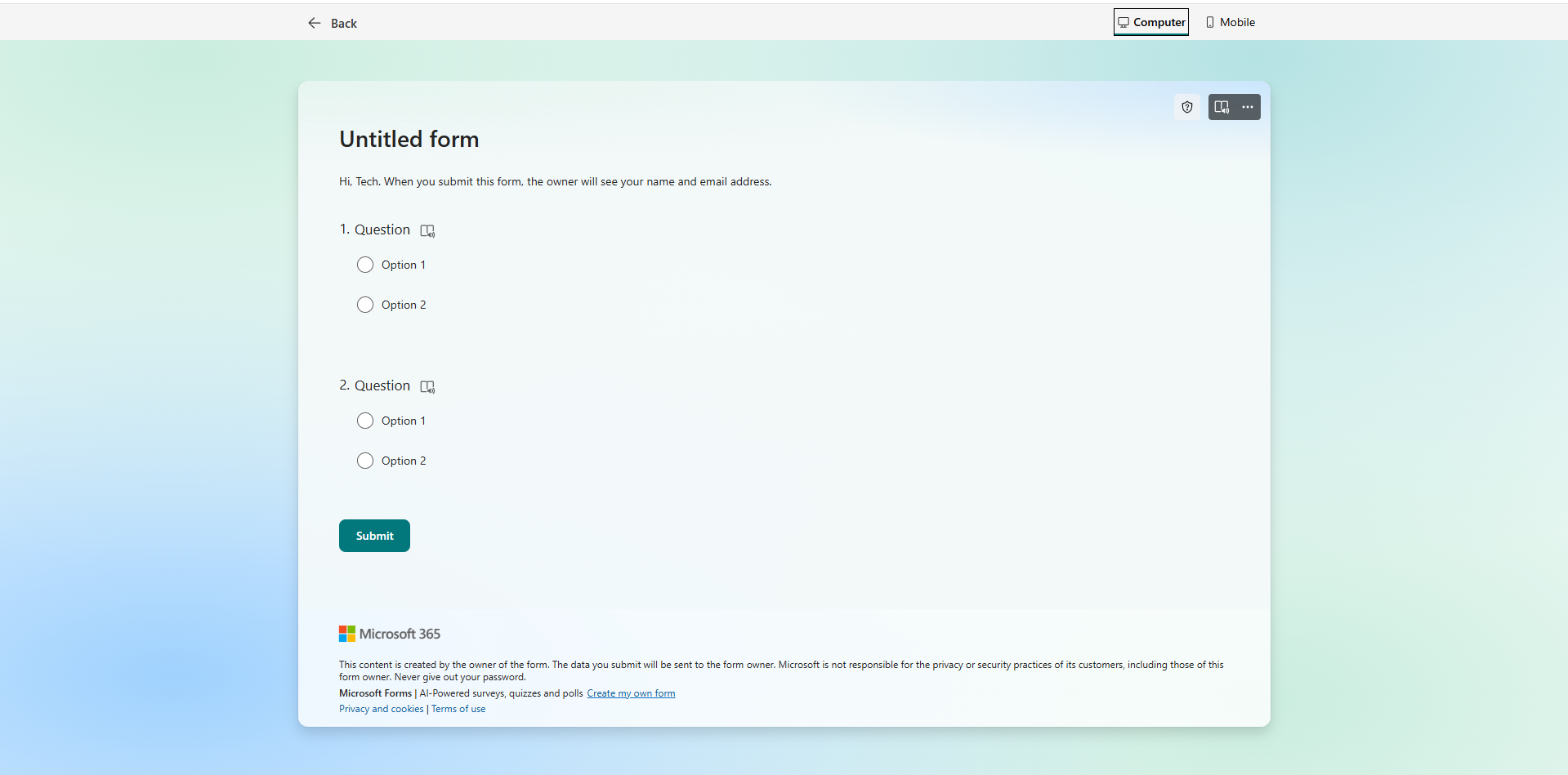
And don't forget to have fun with the near limitless customization options of the Microsoft Forms program. Enjoy!

